Home Blog Page 11

Best Hosting with Staging Environment Feature

0

Last Updated on November 7, 2026

Managing a WordPress website requires constant updates, design improvements, and plugin installations. However, making these changes directly on the live site can be dangerous. A single error could cause broken pages, downtime, or even loss of customer trust. This is why choosing hosting with a staging environment feature is so valuable.

A staging environment acts as a safe copy of your live website where you can test everything before publishing. With this feature, you can try out new themes, plugin updates, custom code, or design changes without worrying about breaking the live site. For businesses, bloggers, and developers, it’s a must-have tool that saves time, protects brand reputation, and ensures smooth user experiences.

In the next sections, we’ll explore what a WordPress staging environment is and why it’s so beneficial for website owners.

What Is a WordPress Staging Environment?

A WordPress staging environment is essentially a private sandbox or clone of your live website. It mirrors your site’s design, content, and functionality, but it exists in a separate space that only you (or your team) can access.

Here’s how it works:

  • Your hosting provider gives you the option to create a copy of your site with one click.

  • You can use this copy to test plugins, apply theme changes, or run updates.

  • Once everything looks good, you can push the changes to the live site without affecting your visitors.

This staging area is especially useful for:

  • Developers who need to test new features or code.

  • Business owners who want to launch new services or e-commerce updates safely.

  • Bloggers who experiment with different themes and plugins to improve their websites.

Without staging, you risk errors appearing on your live site, which can cause poor user experience and even revenue loss. With staging, you gain a secure environment to test and perfect everything before going public.

Benefits of Staging Environments

Using a staging environment provides multiple advantages that go far beyond simple testing. Let’s look at the most important benefits:

1. Safe Experimentation

You can install plugins, try out new themes, or make design adjustments without worrying about breaking your live site. This freedom allows for creativity and innovation.

2. Detecting Bugs and Errors Early

Many plugins or custom codes can conflict with existing site elements. With a staging site, you can catch these bugs early before your visitors ever notice.

3. Hassle-Free WordPress Updates

WordPress core, themes, and plugins require regular updates. Doing this on a live site can sometimes break functionality. A staging environment allows you to apply updates safely, test them, and then publish to the live site.

4. Time and Cost Efficiency

Fixing issues on a live website can be stressful and costly, especially if downtime impacts your sales or reputation. By testing first on a staging site, you save time and avoid unexpected expenses.

5. Smooth Team Collaboration

For agencies or businesses with multiple team members, staging sites allow collaboration. Developers, designers, and content creators can all test and review changes before they go live.

6. Enhanced User Experience

Your audience will never see broken features, errors, or “under maintenance” messages. They always experience a professional, working website.

7. Stress-Free Deployment

Once you’re confident that everything is working perfectly, you can deploy updates with a single click. This reduces stress and ensures seamless transitions from staging to live.

Top WordPress Hosting Providers with Built-in Staging Environments

When building or managing a WordPress website, testing changes directly on the live site can be risky. A small error in a plugin update, theme customization, or new feature rollout might break your website, costing you traffic and sales. That’s why choosing a hosting provider with a built-in staging environment is essential.

In this article, we’ll explore the best WordPress hosting providers that offer staging environments—so you can safely test updates before pushing them live.

What Is a Staging Environment?

A staging environment is a copy of your live website where you can safely test changes without affecting visitors. It works like a “sandbox” where you can:

  • Try new themes, plugins, or custom code.

  • Test updates for compatibility.

  • Fix errors before they reach your live audience.

  • Ensure performance and security remain intact.

With staging, you reduce risks and make website management more professional.

Benefits of Using Hosting with Staging Feature

  • Risk-Free Testing – Experiment with updates safely.

  • Improved Workflow – Easily push changes live with one click.

  • Better Collaboration – Teams can test and review before launch.

  • Stronger Security – Prevents live site crashes and downtime.

1. Hostinger – Affordable Hosting with Easy Staging

Hostinger is one of the most budget-friendly hosting providers that still offers staging environments. With its WordPress-optimized plans, you can quickly create a staging site and push updates when ready.

Hostinger

Key Features:

  • One-click staging tool for WordPress.

  • Fast LiteSpeed servers.

  • Free SSL and weekly backups.

  • 24/7 customer support.

Best For: Beginners and small businesses looking for affordable WordPress hosting with modern features.

2. Bluehost – Beginner-Friendly Hosting with Staging

Bluehost is officially recommended by WordPress.org and comes with a simple staging environment feature built directly into its dashboard.
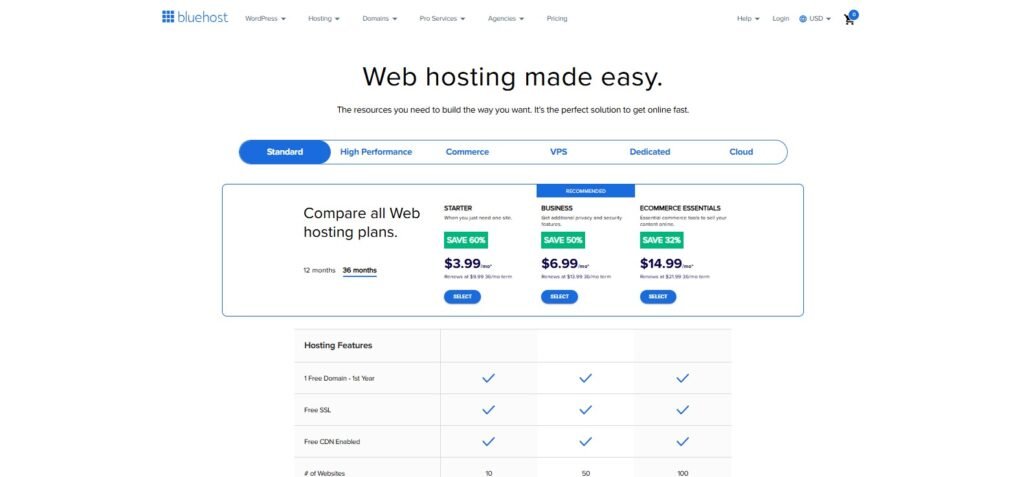
Bluehost

Key Features:

  • One-click WordPress staging.

  • Free domain for the first year.

  • Automatic WordPress updates.

  • 24/7 support and strong uptime.

Best For: New website owners who want an easy-to-use host with staging and strong reliability.

3. Kinsta – Premium Managed Hosting with Advanced Staging

Kinsta is a premium managed WordPress hosting provider built on Google Cloud Platform. It offers advanced staging environments (including multiple staging setups for developers).

Key Features:

  • One-click staging and advanced testing tools.

  • Automatic daily backups and security monitoring.

  • Powered by Google Cloud for blazing speed.

  • Free migrations and excellent developer tools.

Best For: Agencies, enterprises, and developers who need high performance and advanced staging flexibility.

4. WP Engine – Premium Managed WordPress Hosting

WP Engine is one of the most popular managed WordPress hosting providers. It comes with a one-click staging environment, making it easy to test themes, plugins, and updates.
Wpengine

Key Features:

  • Automatic daily backups.

  • Free SSL and CDN integration.

  • Excellent speed and performance.

  • Developer-friendly tools and workflow.

Best For: Agencies, professional bloggers, and businesses looking for premium WordPress hosting.

5. Liquid Web – High-Performance Hosting for Professionals

Liquid Web is known for its powerful managed hosting solutions, especially for high-traffic websites and eCommerce stores. It includes staging environments with its managed WordPress and WooCommerce hosting plans.

Key Features:

  • One-click staging site creation.

  • Advanced security and automatic backups.

  • Scalable hosting with dedicated and VPS options.

  • Excellent 24/7 support.

Best For: Enterprises, developers, and eCommerce businesses requiring performance and reliability.

6. SiteGround – Affordable and Reliable Hosting with Staging

SiteGround is a beginner-friendly hosting provider that also offers staging features in its GrowBig and GoGeek plans. It’s affordable yet powerful, making it ideal for small businesses and bloggers.
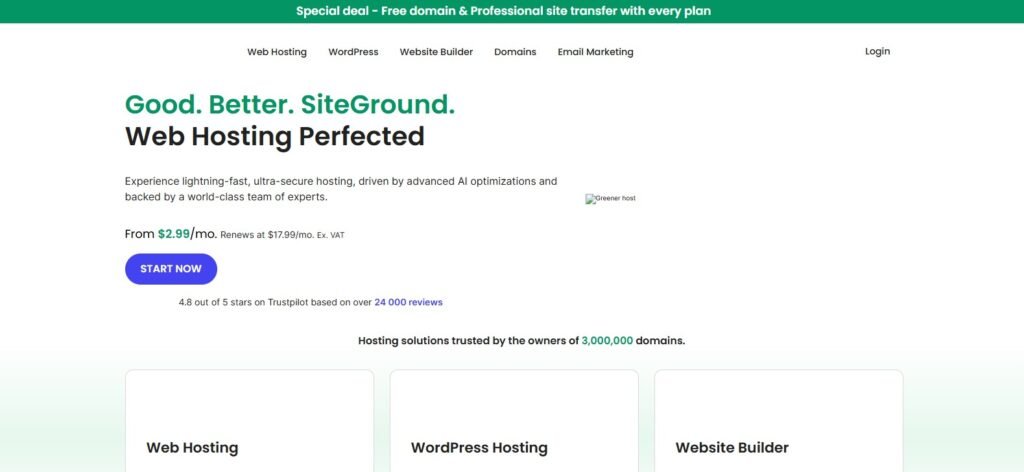
Key Features:

  • One-click staging tool.

  • Free daily backups and restore.

  • Free CDN and SSL.

  • Great uptime and customer support.

Best For: Beginners, small businesses, and bloggers who need reliable hosting with staging support at a budget-friendly price.

7. InMotion Hosting – Flexible Hosting with Staging Options

InMotion Hosting provides a staging feature through its BoldGrid plugin integration, which allows users to test changes before deploying them live. It’s a solid choice for both beginners and professionals.

Key Features:

  • Staging powered by BoldGrid.

  • SSD storage and free SSL.

  • Free website migration.

  • Affordable plans with flexible options.

Best For: Startups, freelancers, and developers who want flexibility at an affordable cost.

8. HostGator – Beginner-Friendly Hosting with Staging Options

HostGator is known for its affordable plans and easy-to-use tools. While it may not be as advanced as some premium WordPress hosts, it does provide staging support for WordPress users.

Features:

  • One-click WordPress staging environment (available with higher-tier plans or via plugins).

  • Free website migration.

  • Solid uptime and performance for small to medium websites.

Pros:

  • Budget-friendly pricing.

  • Beginner-friendly dashboard.

  • Good customer support.

Cons:

  • Staging environment is not as advanced as managed WordPress hosts.

  • Can require manual setup with some plans.

Best for: Beginners and small businesses looking for affordable hosting with staging functionality.

9. GoDaddy – Popular Hosting with Easy Staging Tools

GoDaddy is one of the most recognized names in hosting and domain registration. For WordPress websites, it offers a simple staging solution.

Features:

  • One-click staging for WordPress sites.

  • Built-in backup and restore points.

  • Simple push-to-live options.

Pros:

  • User-friendly for non-technical users.

  • Huge marketplace for domains and add-ons.

  • Reliable customer support.

Cons:

  • Renewal prices can be high.

  • Limited advanced developer features compared to premium providers.

Best for: Small to medium-sized businesses that need a recognizable, all-in-one hosting and staging solution.

10. WordPress.com – Managed WordPress Hosting with Staging

WordPress.com is a fully managed WordPress hosting platform with staging included in its higher-tier Business and eCommerce plans.

Features:

  • Built-in staging environment for testing themes, plugins, and site changes.

  • Automatic updates and backups.

  • Fast performance with global CDN.

Pros:

  • Optimized for WordPress performance.

  • Hassle-free setup and management.

  • Staging is very straightforward and integrated into the dashboard.

Cons:

  • More expensive than shared hosting providers.

  • Limited flexibility for advanced developers who need full server control.

Best for: Bloggers, entrepreneurs, and businesses that want a fully managed WordPress experience with seamless staging.

How to Create a WordPress Staging Environment

1. Using Your Hosting Provider’s Built-in Tools

Many premium hosts like SiteGround, Kinsta, and WP Engine provide one-click staging. Here’s how it usually works:

  • Log in to your hosting dashboard.

  • Navigate to your website tools section.

  • Click “Staging” and create a copy of your site.

  • Test changes on the staging version.

  • Push changes live with a single click.

This is the easiest and most secure way since the host manages the technical details.

2. Using WordPress Staging Plugins

If your hosting provider doesn’t offer staging, you can use plugins like:

  • WP Staging – Creates a clone of your website quickly.

  • Duplicator – Useful for both staging and migrations.

  • All-in-One WP Migration – Great for testing backups and site changes.

Steps:

  • Install the plugin from the WordPress dashboard.

  • Create a clone/staging copy of your site.

  • Test changes safely.

  • Push changes live when ready.

Common Mistakes to Avoid with Staging

  • Leaving the staging site indexed by Google (always noindex it).

  • Forgetting to secure the staging URL with a password.

  • Not taking a backup before pushing changes live.

Key Factors to Consider When Choosing Hosting with Staging

When selecting the best hosting provider with a staging environment feature, you need to carefully evaluate several factors. Not every hosting company offers staging, and even when they do, the quality and ease of use can vary. Here are the most important aspects to keep in mind:

1. One-Click Staging and Deployment

The main reason to use a staging environment is convenience. Look for hosting that allows you to create and push a staging site to the live site in just one click. This saves time and reduces the risk of errors.

2. Ease of Use

Not all users are developers. A beginner-friendly dashboard with clear options for staging will make your work much smoother. Hosting providers like SiteGround and Bluehost provide simple staging tools, while premium providers like Kinsta and WP Engine offer advanced features for developers.

3. Security and Privacy

Your staging environment should be private and password-protected to prevent unauthorized access. Some hosts allow you to restrict staging access to team members only, which is crucial if you are working on client projects or sensitive websites.

4. Backup and Restore Options

Before pushing changes from staging to live, it’s vital to have reliable backups. Good hosting providers offer automated daily backups and one-click restore options to keep your site safe in case something goes wrong.

5. Performance and Resources

Your staging site should run smoothly without slowing down your main website. Check if your hosting provider offers dedicated resources for staging sites. High-performance hosting ensures accurate testing of themes, plugins, and updates before going live.

6. Cost and Value

Not all hosting plans include staging features. Some providers only add it in premium or managed WordPress hosting plans. Compare pricing and features to make sure you’re getting the best value for your budget.

Conclusion

Choosing the best hosting with a staging environment feature is a smart investment for anyone who wants a secure, professional, and hassle-free website management experience. Whether you’re a blogger testing new plugins, an e-commerce owner adding products, or an agency building client sites, staging environments save time and reduce risks.

When comparing providers, focus on ease of staging, security, backup options, performance, and cost. Hosting companies like Kinsta, WP Engine, SiteGround, and Bluehost are popular choices because they combine reliability with powerful staging tools.

In short, if you want to test changes safely, improve your workflow, and protect your live website, choosing a hosting provider with a strong staging feature is essential.


Resume template with resume tips included

0

Last Updated on November 7, 2026

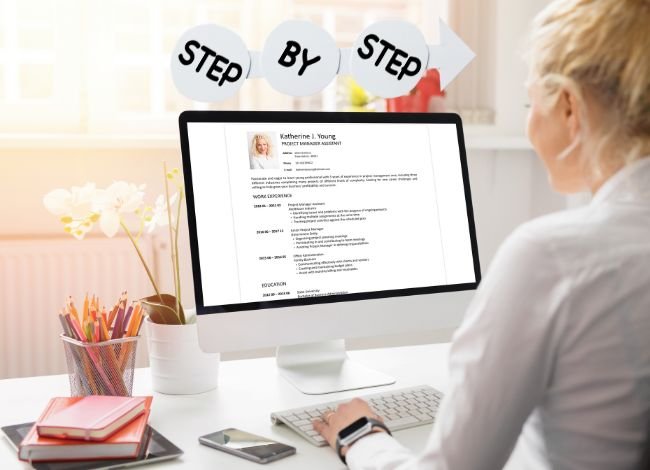
In today’s job market, where competition is intense and first impressions matter more than ever, your resume plays a critical role in determining whether you move forward in the hiring process. A resume is not just a summary of your education and work experience—it is a carefully crafted marketing document that tells employers why you are the best fit for the position. For many candidates, creating this document from scratch can feel overwhelming, which is why having a resume template with resume tips included is a huge advantage.

Such templates don’t just provide structure and formatting—they also guide you with practical writing advice. When you use them, you avoid the confusion of deciding what sections to include, how to phrase accomplishments, and what kind of design recruiters prefer. Instead, you can focus on customizing the template to reflect your strengths. In this article, we’ll break down how to create a strong resume, avoid common mistakes, and apply tips that ensure your resume passes both human eyes and Applicant Tracking Systems (ATS).

CREATE A STRONG RESUME

A strong resume is one that immediately captures the hiring manager’s attention and clearly communicates your value. Recruiters typically spend just a few seconds scanning each resume, so you have to make those seconds count. A weak resume often looks cluttered, lacks focus, or simply repeats job duties instead of demonstrating accomplishments.CREATE A STRONG RESUME

To build a resume that stands out, focus on three things: clarity, relevance, and results. Clarity ensures the document is easy to read; relevance shows you understand the job requirements; and results demonstrate that your skills lead to measurable success. For instance, instead of writing “Handled customer calls,” a stronger version would be “Resolved customer concerns with a 95% satisfaction rate.”

Using a resume template with resume tips included helps you strike this balance. The template gives you the right structure, while the embedded tips guide you on how to phrase your experience in a results-driven way.

GETTING STARTED

Before you begin writing, preparation is key. Think of your resume as your professional story—it needs to have a clear flow and highlight the achievements that make you stand out. Here’s how to start:

  1. Choose the right format – Decide between chronological (best for steady career growth), functional (good for career changers), or a hybrid format (balanced for most job seekers).
  2. Collect your information – Write down your past positions, education, skills, certifications, and any awards. Having all your details in one place makes writing faster.
  3. Study the job description – Employers often use keywords in postings. Align your resume with these keywords so it’s optimized for ATS.
  4. Select a professional template – A resume template with resume tips included ensures you don’t forget critical sections like summary, skills, or education, while also teaching you how to present your content effectively.

Getting started might feel like the hardest step, but with the right tools, you’ll have a strong foundation for a professional, eye-catching resume.

RESUME TIPS

Building a resume isn’t just about listing your work history—it’s about packaging your achievements in a way that attracts hiring managers. A well-written resume demonstrates not only what you’ve done but also how you’ve made an impact.4 Tips for the Perfect Resume Length

Here are some practical resume tips you should follow:

  • Keep it focused: Limit your resume to one or two pages, depending on your level of experience. Recruiters rarely spend more than a few minutes on each application.
  • Use clear formatting: Stick to professional fonts like Arial, Calibri, or Times New Roman, with consistent headings and spacing. Avoid overuse of colors or graphics, as these can confuse ATS systems.
  • Highlight achievements, not tasks: Instead of writing “Responsible for social media,” try “Increased social media engagement by 35% through targeted campaigns.”
  • Incorporate keywords: Scan the job posting for skills or qualifications that appear multiple times. Integrate these keywords into your resume naturally.
  • Proofread carefully: Even a small typo can create a negative impression. Review your resume multiple times, and if possible, ask someone else to check it too.

A resume template with resume tips included ensures you remember these essentials while writing. Instead of worrying about structure or formatting errors, you can focus on content quality.

RESUME LANGUAGE SHOULD BE:

The words you choose can make a big difference in how your resume is perceived. Strong, action-oriented language shows that you are confident and capable. Weak or vague wording, on the other hand, can make your accomplishments sound unimpressive.

When writing your resume, your language should be:

  • Concise: Use short, direct sentences. For example, “Led a team of 12 engineers” is more powerful than “Was in charge of a team of engineers.”
  • Action-driven: Start bullet points with action verbs like achieved, implemented, designed, managed, or developed. These words immediately highlight what you accomplished.
  • Quantifiable: Whenever possible, add numbers to demonstrate impact. For example, “Increased sales by 20%” is far stronger than “Helped improve sales.”
  • Professional: Avoid slang, casual expressions, or unnecessary jargon. Keep your tone polished.
  • Positive: Highlight strengths rather than weaknesses. Instead of “Had limited experience but tried hard,” frame it as “Quickly adapted to new challenges and gained strong experience.”

Many candidates fail to land interviews simply because their wording lacks strength. A resume template with resume tips included solves this by reminding you to use action-oriented, professional language throughout your resume.

TOP FIVE RESUME MISTAKES:

Even the most qualified candidates sometimes fail to get interview calls because of simple errors in their resumes. Understanding and avoiding these mistakes can dramatically improve your chances of standing out. Here are the five most common resume mistakes:

  1. Spelling and Grammar Errors – A single typo can create the impression that you lack attention to detail. Always proofread thoroughly.

  2. Too Much Information – Employers don’t need every job you’ve ever held. Focus on relevant experience only.

  3. Unprofessional Email Address – If your email looks casual or outdated (e.g., cooldude123@email.com), create a professional one that includes your name.

  4. Irrelevant Details – Personal hobbies or outdated skills that don’t connect to the job should be avoided.

  5. Poor Formatting – Inconsistent fonts, messy layouts, or walls of text make resumes hard to read. Recruiters should be able to scan your resume quickly.

Using a resume template with resume tips included helps you avoid these pitfalls by offering both professional formatting and guidance on what to include or leave out.

DON’T:

When crafting your resume, avoid these common habits that can reduce your credibility:

  • Don’t use decorative fonts or flashy graphics that distract from your content.
  • Don’t exaggerate or lie about your qualifications—recruiters can easily verify.
  • Don’t add references directly to the resume. Instead, simply write “References available upon request.”
  • Don’t submit the exact same resume to every job—customize it for each application.

DO:

On the other hand, here’s what you should absolutely do when preparing your resume:

  • Do use a clean, well-structured template to make your information easy to follow.
  • Do highlight accomplishments instead of listing job duties.
  • Do include numbers, percentages, or measurable outcomes whenever possible.
  • Do keep your resume ATS-friendly by using simple headings and avoiding unnecessary graphics.
  • Do update your resume regularly with new skills, projects, and achievements.

Following these guidelines ensures your resume looks professional and communicates your value clearly. A resume template with resume tips included reinforces these best practices so you don’t accidentally overlook them.

PLAN TO WORK INTERNATIONALLY?

If you’re considering applying for jobs abroad, it’s important to recognize that resume standards vary from country to country. What works in one region may not be suitable elsewhere. This is why tailoring your resume based on local expectations can significantly increase your chances of success.

  • United States & Canada: Resumes are typically one page for entry-level candidates and up to two pages for experienced professionals. Personal details such as age, marital status, and photographs are excluded for privacy and anti-discrimination reasons.
  • Europe (CV format): European CVs tend to be more detailed, often spanning two or more pages. It’s common to include additional sections such as language skills, publications, and sometimes even a photo.
  • Asia: In countries like Japan, China, and South Korea, resumes often follow highly structured formats and may include personal information such as date of birth or a headshot.
  • Middle East: Employers may expect longer CVs (two to three pages) that emphasize technical skills and certifications.

If your goal is to work internationally, research the resume norms of your target country and adjust accordingly. Using a resume template with resume tips included can make this process easier by guiding you on how to modify your content for global standards while still maintaining a professional layout.

RESUME SAMPLE

Here’s a simple sample resume structure that can be customized based on your experience and the job you’re applying for:

Emily Johnson
Email: emily.johnson@email.com | Phone: (555) 123-4567 | LinkedIn: linkedin.com/in/emilyjohnson

Professional Summary
Results-driven marketing professional with 6+ years of experience leading digital campaigns and brand development strategies. Proven track record in increasing online engagement and boosting revenue growth.

Work Experience
Marketing Manager – BrightWave Media (2020–Present)

  • Developed and implemented digital strategies that increased web traffic by 45% in one year.
  • Managed a $300,000 annual budget and achieved consistent ROI improvements.

Digital Marketing Specialist – Blue Horizon Agency (2016–2020)

  • Launched successful SEO campaigns that ranked 10+ client websites on the first page of Google.
  • Coordinated social media advertising, improving client engagement by 35%.

Education
Bachelor of Business Administration (Marketing) – University of Texas, 2015

Skills
SEO Optimization | Social Media Strategy | Google Analytics | Project Management

This format balances clarity and professionalism, making it easy for hiring managers to scan qualifications quickly. When using a resume template with resume tips included, you can customize each section while also receiving writing prompts to ensure your resume is both polished and ATS-friendly.

OPTIONAL CATEGORY EXAMPLES

While every resume should include the basics—summary, work experience, education, and skills—there are optional categories that can strengthen your profile depending on your field and career stage. These categories showcase additional qualifications that set you apart from other applicants.

  • Certifications: Professional certifications like Google Analytics, AWS Certified Solutions Architect, PMP, or CPA can prove specialized expertise.
  • Volunteer Experience: Particularly useful for students, career changers, or those with employment gaps. Volunteer work demonstrates initiative and transferable skills.
  • Awards and Honors: If you’ve received recognition for your work, highlight it. For example, “Employee of the Year” or “Top Sales Performer 2023.”
  • Projects: In technical or creative industries, showcasing projects (websites, research papers, software builds, or designs) adds credibility.
  • Languages: Fluency in multiple languages can be a major advantage in international roles.

Adding these optional categories can elevate your resume from average to outstanding. A resume template with resume tips included often provides prompts for these sections, ensuring you don’t overlook details that could impress an employer.

RESUME TEMPLATE 1 (WITH BULLET POINTS)

This format is concise, clear, and very effective for job seekers who want recruiters to scan their qualifications quickly.

Sophia Carter
Email: sophia.carter@email.com | Phone: (444) 987-6543 | LinkedIn: linkedin.com/in/sophiacarter

Summary
Detail-oriented accountant with 8+ years of experience in financial reporting, auditing, and compliance. Adept at process improvement and managing cross-functional teams.

Experience
Senior Accountant – Global Finance Solutions (2018–Present)

  • Reduced financial reporting errors by 20% by implementing new review systems.
  • Supervised a team of 5 junior accountants, enhancing departmental efficiency.

Accountant – Citywide Accounting Services (2014–2018)

  • Assisted in audits resulting in zero compliance violations.
  • Streamlined monthly reporting process, cutting preparation time by 30%.

Education
Bachelor of Science in Accounting – New York University, 2013

Skills
Auditing | Tax Compliance | Financial Analysis | Team Leadership

This bullet point format works well for professionals in industries like finance, IT, sales, or engineering. It allows quick scanning while keeping the focus on measurable achievements.

RESUME TEMPLATE 2 (PARAGRAPH FORMAT)

For candidates in creative or managerial roles, a paragraph-based format can be more persuasive, as it reads like a professional narrative.

David Thompson
Email: david.thompson@email.com | Phone: (333) 654-7890 | LinkedIn: linkedin.com/in/davidthompson

Summary
An experienced project manager with over 10 years of expertise in leading cross-functional teams and delivering projects within scope, budget, and deadlines. Skilled in Agile methodologies, risk management, and stakeholder communication.

Experience
As Senior Project Manager at InnovateTech (2017–Present), I successfully oversaw global projects valued at over $5 million, coordinating teams across North America and Europe. My leadership reduced project delivery times by 18% while maintaining stakeholder satisfaction above 90%. Prior to this, as Project Coordinator at Metro Solutions (2012–2017), I implemented a scheduling system that increased team efficiency by 25% and improved resource allocation.

Education
Master of Business Administration (MBA) – Harvard Business School, 2011

Skills
Project Leadership | Agile & Scrum | Risk Analysis | Strategic Planning

This format is ideal for professionals in leadership, consulting, or creative fields where storytelling and narrative flow are as important as technical skills. A resume template with resume tips included provides guidance on when to use bullet points versus paragraph formats, depending on your industry and role.

WRITE AN EFFECTIVE COVER LETTER

A resume gets your foot in the door, but a cover letter can be the deciding factor in whether or not you land an interview. While resumes are factual and structured, cover letters allow you to showcase your personality, motivation, and enthusiasm for the role. Think of it as your opportunity to speak directly to the hiring manager.

To write an effective cover letter:

  • Personalize it: Address the hiring manager by name whenever possible. Avoid generic greetings like “To Whom It May Concern.”
  • Show genuine interest: Explain why you’re attracted to the company and the role. This demonstrates that you’ve done your research.
  • Highlight the most relevant experience: Rather than repeating your resume word-for-word, expand on one or two key achievements that match the job description.
  • Keep it concise: Limit your cover letter to one page. Recruiters want enthusiasm, not an autobiography.
  • End with a call-to-action: Conclude by expressing your eagerness to discuss how your skills can benefit the company.

Using a resume template with resume tips included often comes with cover letter suggestions, helping you stay professional and focused while maintaining a consistent style across both documents.

SAMPLE COVER LETTER

Dear Hiring Manager,

I am excited to apply for the Marketing Manager position at XYZ Company. With over seven years of experience in digital marketing and brand strategy, I have led campaigns that consistently delivered measurable results, including increasing online engagement by 40% and boosting revenue by 25%.

What excites me most about XYZ Company is your reputation for innovation and customer-centric values. I believe my expertise in SEO, content strategy, and data-driven campaign management aligns perfectly with your vision. My proven track record of leading cross-functional teams and delivering projects under tight deadlines makes me confident in my ability to contribute effectively.

I would welcome the opportunity to discuss how my skills can help drive continued success at XYZ Company. Thank you for your time and consideration.

Sincerely,
[Your Name]

Conclusion

Creating a powerful resume doesn’t have to feel overwhelming. With a resume template with resume tips included, you gain more than just a visually appealing format—you get expert guidance on how to structure, phrase, and present your career achievements. These templates ensure your resume is both ATS-friendly and recruiter-friendly, increasing your chances of landing interviews.

Remember, a strong resume:

  • Highlights accomplishments, not just responsibilities.
  • Uses professional, action-driven language.
  • Avoids common mistakes that cost candidates opportunities.
  • Adapts to international standards if you’re applying globally.

Pairing your resume with an effective cover letter provides a complete job application package that positions you as a professional, motivated, and results-oriented candidate.

At the end of the day, your resume is more than just a piece of paper—it’s a tool to open new doors. By using a resume template with resume tips included, you save time, avoid costly mistakes, and present yourself in the best possible light to employers.

Modern professional resume template Word

0

Last Updated on November 7, 2026

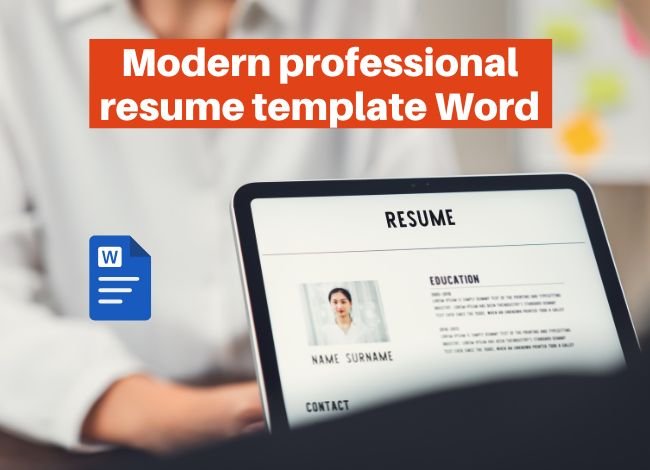
Landing your dream job today requires more than just the right qualifications—it requires presentation. A resume is often the very first impression you make on a recruiter or hiring manager. While your skills and achievements are the backbone of your career story, the way they are structured and displayed determines whether your resume will be noticed or ignored. This is where a modern professional resume template for Microsoft Word can make all the difference.

Microsoft Word remains one of the most widely used tools for creating resumes due to its simplicity, compatibility, and flexibility. With Word templates, job seekers can save valuable time, maintain consistent formatting, and ensure that their resumes meet professional standards. The modern designs available now go beyond the plain text layouts of the past—today, you can find Word resume templates that are sleek, industry-specific, and ATS-friendly (Applicant Tracking System friendly).

In this article, we’ll cover 15 different types of custom resume templates for Microsoft Word, each with a unique purpose and appeal. We’ll also walk through tips on how to select the right template, how to use it effectively, and common mistakes to avoid. By the end, you’ll know exactly how to craft a visually appealing, professional, and job-winning resume.

15 Custom Resume Templates for Microsoft Word

1. Simple

Sometimes less is more. A simple resume template is designed for candidates who want to present information in a clean, straightforward, and no-frills format. It typically includes clearly defined sections for education, work history, and skills. Recruiters appreciate simple templates because they are easy to skim, ensuring no detail is lost in over-designed layouts.

  • Perfect for entry-level positions, administrative roles, or industries where tradition matters.

  • Easy to customize, ensuring that the content speaks louder than the design.

2. Executive

For senior professionals, executives, and leaders, the executive Word resume template balances elegance with authority. It often features a professional header, subtle use of bold lines or dividers, and a layout that emphasizes achievements over duties.

  • Great for CEOs, directors, or department heads.

  • Allows space for career highlights and professional summaries that establish authority quickly.

3. Clean

The clean resume template shares similarities with the simple version but often has a modern edge. Minimal use of borders, icons, or muted colors keeps the design fresh yet professional.

  • Works well in industries like healthcare, finance, or education.

  • Ensures recruiters can easily focus on your skills and experience without distraction.

4. Current

A current template reflects modern trends in resume design, often using soft color highlights, two-column structures, or subtle use of graphics. It helps applicants look up-to-date and tech-savvy.

  • Ideal for marketing, communications, and media professionals.

  • Emphasizes creativity while staying ATS-friendly.

5. Pretty

While “pretty” may sound casual, this type of template is popular among creative job seekers who want to stand out visually. These Word resume templates may use stylized fonts, decorative dividers, or elegant color schemes.

  • Perfect for graphic designers, fashion professionals, or event planners.

  • Caution: Avoid using too many visuals, which can make it harder for ATS systems to read.

6. Classic

The classic resume template is timeless. It relies on traditional one-column structures, black text, and minimal decoration. This is the style recruiters have trusted for decades.

  • Best suited for law, government, academia, or conservative industries.

  • Still widely effective because of its professional and universally accepted look.

7. Premium

Premium templates in Microsoft Word often combine sophisticated layouts with high customization options. These are designed to look polished and professional while showcasing modern appeal.

  • Useful for mid-career and senior professionals applying to competitive positions.

  • Many premium templates are sold online and come with matching cover letter designs.

8. Two Column

The two-column resume template is one of the most popular modern designs for Microsoft Word. It divides the page into two sections: one column for concise details like contact information, skills, and certifications, and a larger column for experience and education.

  • This design helps recruiters quickly scan key highlights without losing track of detailed achievements.

  • Works well for applicants in sales, marketing, consulting, and creative industries.

  • Keeps the layout balanced, ensuring information is not crowded.

9. Tech

A tech resume template is crafted for candidates in technology-driven industries, such as IT, software development, and data analysis. These templates often include space for technical skills, programming languages, and certifications. Some even feature small icons or subtle graphics to enhance readability.

  • Highlights core competencies like coding languages, tools, or project experience.

  • Maintains a clean, modern structure to appeal to both hiring managers and ATS software.

10. Aesthetic

An aesthetic resume template balances visual appeal with professionalism. These templates may use stylish fonts, color accents, or geometric dividers. The goal is to present your information in a visually pleasing way without being over-designed.

  • Suitable for marketing professionals, designers, and those in creative fields.

  • An aesthetic design can help you stand out in industries where personal branding matters.

11. Corporate

The corporate resume template emphasizes professionalism and clarity. It avoids flashy elements and sticks to structured layouts, typically with bold headings, clear fonts, and well-organized sections.

  • Best for corporate jobs in finance, HR, management, or operations.

  • Projects a strong, reliable, and no-nonsense impression to hiring managers.

12. White House

The White House template is designed to appear formal, prestigious, and commanding respect. It usually has a well-defined header, a structured body, and room for achievements and recognitions.

  • Perfect for jobs in government, administration, law, or academia.

  • Provides an authoritative and dignified style that sets the tone for serious professional applications.

13. Visual

Visual templates use graphic elements like icons, bars, or subtle charts to highlight skills and achievements. They give recruiters a quick snapshot of your expertise.

  • Often used in creative industries like design, advertising, or digital media.

  • Can help illustrate soft skills or technical abilities in an engaging format.

  • Important to balance visuals with ATS readability, so avoid overloading graphics.

14. Pastel

Pastel templates incorporate soft colors like light blue, peach, or mint green, giving the resume a modern yet approachable vibe. These colors make the resume stand out without being too loud.

  • Ideal for job seekers in wellness, hospitality, education, or creative roles.

  • Creates a warm and welcoming impression while still looking professional.

15. Cosmopolitan

The cosmopolitan template blends global sophistication with modern design. It often features two or three columns, tasteful color accents, and bold typography.

  • Great for candidates in international business, fashion, communications, and media.

  • Represents a confident, stylish, and worldly professional personality.

With these 15 modern professional Word resume templates, candidates can select a design that aligns with their career goals, industry standards, and personal brand. Each template carries a unique flavor, ensuring that your resume doesn’t just communicate information but also reflects your professional identity.

How to Select a Microsoft Word Resume Template

With hundreds of templates available, choosing the right Microsoft Word resume template can feel overwhelming. The best approach is to think strategically about how you want to present yourself to recruiters. Your template is more than just a design—it’s a reflection of your professionalism, communication style, and suitability for the role. Below are the main factors to consider when selecting the perfect template:How to Select a Microsoft Word Resume Template

Match the Template to Your Career Stage

  • Entry-Level or Fresh Graduate: A simple or clean layout works best. Recruiters expect clear formatting that highlights education, internships, and transferable skills.

  • Mid-Level Professional: Opt for modern or corporate templates that showcase work experience, achievements, and a growing list of responsibilities.

  • Senior Executives or Leaders: Executive or premium templates offer space for detailed career highlights, board memberships, and leadership achievements.

Consider Industry Standards

Not all industries expect the same type of resume. A graphic designer applying with a plain black-and-white template may look outdated, while a lawyer using a pastel-colored resume may look unprofessional. Understanding what your target industry values is crucial.

  • Creative Fields: Aesthetic, visual, or pastel templates allow you to display creativity.

  • Traditional Professions: Classic or White House templates give a professional and trustworthy appearance.

  • Corporate Jobs: Executive, clean, or corporate templates signal seriousness and reliability.

  • Tech Jobs: Tech templates emphasize technical skills and project experience, aligning with employer expectations.

Prioritize Readability and ATS Compatibility

Applicant Tracking Systems (ATS) are used by most companies to filter resumes. A beautiful resume is useless if the ATS can’t read it.

  • Stick to standard fonts like Arial, Calibri, or Times New Roman.

  • Avoid heavy graphics that might confuse parsing software.

  • Make sure headings like “Work Experience,” “Education,” and “Skills” are clearly labeled.

Think About Your Personal Branding

A resume isn’t just a document—it’s part of your personal brand. The template you choose should align with how you want to be perceived:

  • Do you want to look innovative and bold? Choose a modern or cosmopolitan template.

  • Do you prefer to appear reliable and traditional? Go with a classic or simple design.

  • Are you applying internationally? A cosmopolitan or executive template may better reflect global professionalism.

Practicality and Customization

Finally, ensure the template is easy to edit and customize in Microsoft Word. Some overly complex templates may look attractive but can be difficult to modify. The goal is to maintain consistency while being able to tailor the resume for each job application.

How to Get the Most Out of Word Resume Templates

Downloading a modern professional resume template for Word is only the first step. To truly stand out, you need to optimize the template for your specific career path. Think of the template as a framework—it gives you structure and design, but it’s your responsibility to fill it with compelling, relevant content. Here’s how to maximize its potential:

How to Get the Most Out of Word Resume Templates

Customize for Each Job Application

A common mistake many applicants make is sending the exact same resume to every employer. Instead, tailor the content in your Word template to highlight the skills and experiences that match the job description.

  • Update keywords to align with the posting.

  • Rearrange achievements to put the most relevant ones first.

  • Add or remove sections (such as certifications, volunteer work, or projects) depending on the role.

Focus on Achievements, Not Just Duties

Templates often provide space for bullet points under each job. Instead of listing daily responsibilities, emphasize accomplishments. For example:

  • Instead of writing “Managed social media accounts,” write “Increased brand engagement by 35% through targeted social media campaigns.”
    This not only makes your resume stronger but also ensures the recruiter sees the real value you bring.

Keep Formatting Consistent

Even the best-designed template can look sloppy if you don’t maintain formatting consistency.

  • Stick to one font style and size across the document.

  • Align headings, margins, and bullet points properly.

  • Ensure spacing is even between sections.
    This attention to detail shows professionalism and prevents your resume from looking rushed.

Use Color and Design Wisely

Modern Word templates often include colors, lines, or subtle icons. While these features can make your resume attractive, don’t overdo it.

  • Use color highlights sparingly, such as for headings or section dividers.

  • Ensure the text remains easy to read in both print and digital formats.

  • Avoid loud or distracting colors that could reduce readability.

Save Multiple Versions

One of the greatest advantages of using Microsoft Word templates is the ability to save different versions. Keep a master copy of your resume and create customized versions for different industries, roles, or employers. This way, you’ll always be prepared without having to redesign from scratch.

Proofread and Test Before Sending

A polished template won’t save you if there are spelling mistakes or formatting errors.

  • Proofread carefully for typos and grammar mistakes.

  • Save the file as both a Word document and a PDF to test how it looks.

  • Open the PDF on different devices to ensure the formatting is consistent.

By using these strategies, you’ll not only make the most of your Word resume template but also give yourself a competitive edge in the hiring process.

Top Hosting for Streaming and Video Sites

0

Last Updated on November 7, 2026

Top Hosting for Streaming video content is now at the heart of the internet. From Netflix-style streaming platforms to small business tutorial sites, audiences are consuming videos more than ever. To meet this demand, you need reliable hosting that can deliver high-quality video without buffering or downtime.

Traditional shared hosting is often not enough for video-heavy websites. Top Hosting for Streaming requires high bandwidth, low latency, powerful servers, and global content delivery. This is where specialized hosting for streaming and video sites comes in. Whether you are running a large-scale streaming platform or a small educational video library, the right hosting provider ensures smooth performance, scalability, and a better user experience.

Streaming Video Hosting

Top Hosting for Streaming video hosting is different from regular web hosting. Instead of simply storing files on a server, streaming hosting is designed to deliver video content quickly and efficiently to users across the world.

Key Features of Streaming Video Hosting:

  • High Bandwidth: To support thousands of viewers simultaneously.

  • CDN Integration: Content Delivery Networks ensure videos load fast globally.

  • Adaptive Bitrate Streaming: Delivers the best video quality depending on the viewer’s internet speed.

  • Scalability: Cloud-based servers adjust resources automatically when traffic spikes.

  • Security: SSL certificates, DDoS protection, and secure video delivery.

Examples of Top Hosting for Streaming and Video Hosting Providers:

  • Kinsta – Cloud-based WordPress hosting with strong performance.

  • Cloudways – Flexible cloud hosting (AWS, Google Cloud, DigitalOcean).

  • Vultr / DigitalOcean – Developer-friendly cloud servers for video projects.

  • Amazon Web Services (AWS Media Services) – Enterprise-level video hosting.

  • SiteGround Cloud – Managed cloud hosting with CDN and caching.

???? If you want to run your own streaming platform (like an online course portal, live streaming events, or on-demand video library), these providers give you the tools to manage it smoothly.

Benefits of Professional Video Hosting

Benefits of Professional Video Hosting

Using Top Hosting for Streaming instead of uploading videos to a basic shared host brings multiple advantages:

  1. Better Performance & Speed
    Videos load faster with CDNs and optimized servers, keeping users engaged.

  2. Unlimited Scalability
    Whether you have 100 visitors or 100,000, cloud hosting scales with your audience.

  3. Enhanced Security
    Professional hosts provide encryption, secure video links, and advanced firewalls.

  4. Advanced Analytics
    Track user behavior, video views, and engagement with built-in reporting tools.

  5. Ad-Free Viewing
    Unlike free platforms (YouTube, Vimeo Basic), professional hosting removes ads, giving your brand a clean image.

  6. Monetization Options
    Many hosts support pay-per-view, subscriptions, or ad integrations for revenue generation.

  7. Custom Branding
    You control the player design, watermarking, and overall user experience.

Drawbacks of Free Streaming Video Hosting Solutions

Free platforms like YouTube, Facebook, or Dailymotion can’t compete with Top Hosting for Streaming, even though they don’t cost money. However, they come with significant limitations that can hurt your brand and audience experience.

1. Lack of Control

You don’t own the platform, which means you can’t fully control how your videos are displayed or monetized. The provider can remove or demonetize your content without notice.

2. Advertisements and Branding Issues

Most free hosting platforms insert their own ads and logos into your content. This distracts viewers and makes it harder to promote your own brand.

3. Limited Monetization Options

Free hosting sites restrict revenue streams. While ads might generate income, you won’t have access to premium monetization features like subscription paywalls or ad-free streaming.

4. Bandwidth and Quality Limitations

Free hosting often compresses videos, reducing playback quality. During peak traffic, buffering and slow playback can frustrate viewers.

5. Privacy Concerns

If you’re hosting private training videos, courses, or internal business meetings, free hosting is risky. Sensitive content may not remain secure.

???? Bottom Line: Free streaming video hosting is good for hobbyists, but for businesses and professionals, it can limit growth and professionalism.

Key Features of Professional Streaming Video Hosting Providers

When you move to top hosting for Streaming, you unlock tools that enhance your brand, improve the user experience, and allow full control over your content. Here are the must-have features:

1. High Bandwidth & Unlimited Streaming

Professional hosts provide scalable bandwidth to ensure your videos play smoothly, even during high traffic.

2. Global Content Delivery Network (CDN)

A CDN reduces latency by delivering videos from servers closest to the viewer, ensuring fast, buffer-free playback worldwide.

3. Advanced Security

SSL certificates, password protection, and encryption protect your content and viewers’ data from cyber threats.

4. White-Label Branding

Unlike free hosts, professional providers let you remove third-party logos and add your own branding, giving your platform a polished, professional look.

5. Multiple Monetization Options

Whether you want to charge subscription fees (SVOD), pay-per-view (TVOD), or use ad-based revenue (AVOD), professional platforms offer flexible monetization tools.

6. Analytics and Reporting

Track audience behavior with in-depth analytics, including viewer location, engagement time, and drop-off rates.

7. API and Integration Support

Professional hosting services often include APIs for developers, making it easy to integrate with apps, websites, or learning management systems.

8. Customer Support

Paid hosting platforms provide 24/7 technical support, ensuring minimal downtime and quick issue resolution.

The 20 Best Video Streaming Hosting Services for 2025

1. Dacast

Dacast is a professional-grade video streaming and hosting platform that supports both live streaming and video-on-demand. It offers built-in monetization tools such as subscriptions, pay-per-view, and advertising. Security is also a strong focus, with features like HTTPS delivery, AES encryption, and token-based access control. Dacast’s pay-as-you-go model can sometimes feel expensive for small users, but for broadcasters, schools, and large events, it provides a reliable and customizable streaming environment.

Dacast

2. Vimeo OTT

Vimeo OTT focuses on helping creators and businesses build subscription-based video platforms. It integrates easily across multiple devices, including Roku, Fire TV, iOS, and Android. Pricing tiers start at a beginner-friendly level and scale with storage and advanced features such as AI-based recommendations. While Vimeo may not be the cheapest option, it is a strong choice for those who want a polished platform to monetize video libraries or online courses.

3. AWS Media Services

Amazon Web Services remains a leader in enterprise-grade hosting, and its Media Services branch delivers unmatched scalability and flexibility. With features like adaptive bitrate streaming, video packaging, and transcoding, AWS is ideal for large-scale video platforms. The downside is the complexity of setup, which requires technical expertise. For media companies and OTT platforms that need to serve millions of viewers, AWS is a top contender.

4. Google Cloud Platform

Google Cloud offers robust video hosting through its Media APIs and global infrastructure. Its standout features include AI and machine learning tools for video tagging, indexing, and optimization. GCP also scales effortlessly with demand, making it suitable for fast-growing startups. Pricing is based on usage, covering storage, bandwidth, and transcoding. This platform is especially powerful for organizations that want data-driven insights alongside video delivery.

5. Microsoft Azure Media Services

Microsoft Azure brings video indexing, live streaming, DRM protection, and cloud storage together into a single platform. It integrates well with enterprise workflows and supports secure delivery across multiple devices. Azure is best suited for businesses that already rely on the Microsoft ecosystem and need advanced security with guaranteed reliability.

6. Wowza Streaming Cloud

Wowza is a well-known solution built specifically for streaming. It supports both live and on-demand video with low latency and adaptive bitrate technology. Wowza integrates seamlessly with CDNs and offers flexible APIs for developers. It is a strong option for media organizations, broadcasters, and event organizers who prioritize professional streaming performance.

7. IBM Cloud Video

Formerly known as Ustream, IBM Cloud Video focuses on corporate video streaming, events, and enterprise broadcasting. It provides secure streaming, analytics, and API support, along with AI-powered video enhancements from IBM Watson. Its pricing is tailored toward larger businesses, but it remains a trusted solution for organizations that prioritize reliability and security.

8. Brightcove

Brightcove is one of the longest-standing enterprise video platforms in the market. It provides powerful analytics, global video delivery, and multiple monetization models. The platform is best suited for large brands, media houses, and enterprises that need a full-featured hosting service with strong support. Custom pricing ensures flexibility, though it may be too expensive for smaller creators.

9. Kaltura

Kaltura is an open-source video platform that can be deployed on your own servers or used through the cloud. It supports both live and on-demand video and is highly customizable. Because it is open-source, it offers extensive integration options for developers. Kaltura is especially popular with universities, educational platforms, and media organizations that want control and flexibility.

10. Muvi

Muvi is a comprehensive OTT platform that allows you to launch a video service across multiple devices with built-in monetization tools. It supports subscriptions, pay-per-view, and advertising, making it versatile for different business models. With its all-in-one approach, Muvi appeals to media brands and content creators looking to build Netflix-style platforms.

11. Wistia

Wistia is designed more for businesses and marketers than traditional broadcasters. It emphasizes video hosting for marketing campaigns, lead generation, and analytics. Its tools help companies integrate video into their customer journey. Wistia is a good option for businesses that rely heavily on video to capture and convert leads.

12. Cloudflare Stream

Cloudflare Stream simplifies video hosting and delivery by combining encoding, storage, and CDN delivery into one service. With Cloudflare’s extensive global network, video delivery is fast and secure. It is well-suited for developers who want simplicity and performance without managing multiple third-party tools.

13. FastPix

FastPix is an emerging player in the video hosting industry. It focuses on adaptive streaming, video management, and cross-device support. While still gaining traction, it provides a cost-effective solution for startups and mid-sized companies that want flexibility in managing video content.

14. VPlayed

VPlayed is a robust streaming platform offering live, VOD, and OTT services. It includes monetization features, detailed analytics, and support for multiple devices. VPlayed is particularly appealing to educational institutions and media companies that need an end-to-end solution.

15. Flowplayer

Flowplayer began as a video player but has evolved into a hosting and streaming platform. It offers easy integration for websites and supports live streaming and video monetization. This service is best for businesses that want a lightweight, embeddable solution.

16. IBM Watson Media

This service is part of IBM’s Watson suite and emphasizes artificial intelligence in video. It offers live streaming, analytics, and AI-driven video indexing. Pricing is often based on viewer hours and storage, making it flexible for enterprises with varied needs.

17. Gumlet

Gumlet is a newer platform that focuses on optimizing video delivery. It offers smart caching, adaptive streaming, and performance monitoring. Gumlet is ideal for product videos, e-learning sites, and businesses looking for efficient video hosting without the complexity of larger enterprise solutions.

18. Cloudinary

Cloudinary is best known as a digital asset management platform, but it has expanded into video hosting and delivery. It provides transcoding, adaptive streaming, and responsive delivery. This service works well for businesses that manage both images and videos and want everything integrated into one system.

19. JW Player

JW Player started as a video player but now offers hosting and streaming capabilities. It supports fast delivery and adaptive bitrate streaming. The platform remains a good choice for websites that want to embed video easily while keeping costs under control.

20. Uscreen

Uscreen is a video monetization platform designed for creators and businesses that want to launch subscription or pay-per-view services. It includes built-in apps, payment gateways, and marketing tools. For independent creators or small studios looking to build sustainable video businesses, Uscreen is an excellent solution.

2025 Trends in Video Hosting and Streaming

The streaming industry is expected to surpass $150 billion by 2025, and hosting providers are evolving to meet growing demands. Here are the top trends shaping hosting for video and streaming sites:

1. Cloud-Based Video Hosting

Cloud hosting remains the most popular choice for video sites. Providers like AWS Media Services, Google Cloud, and Cloudways offer scalable infrastructure that grows with your audience. This is critical for handling unpredictable spikes in traffic.

2. Edge Computing and CDNs

To reduce buffering and latency, video hosting platforms are investing in edge servers and global Content Delivery Networks (CDNs). By bringing data closer to viewers, streaming becomes faster and smoother worldwide.

3. AI-Powered Video Optimization

Artificial intelligence is now used for video compression, encoding, and adaptive bitrate streaming. This ensures viewers with slower internet connections still enjoy a good experience.

4. Enhanced Security

With piracy and cyberattacks on the rise, providers now offer:

  • End-to-end encryption

  • Digital Rights Management (DRM)

  • DDoS protection

  • Secure video embedding

5. Hybrid Monetization Models

Many hosting providers support integration with ad networks, pay-per-view systems, and subscriptions. This trend allows creators and businesses to monetize content flexibly.

Choosing the Right Platform Checklist

Before you select hosting for your video or streaming site, use this checklist:

✅ Bandwidth & Data Transfer – Ensure your host provides unlimited or high-bandwidth plans to avoid downtime.

✅ Storage Capacity – Video files are heavy. Look for SSD-based storage and the option to expand easily.

✅ Global CDN – Must-have for worldwide streaming with low buffering.

✅ Uptime Guarantee – At least 99.9% uptime for reliable service.

✅ Encoding & Transcoding Support – Essential for converting videos into multiple formats for different devices.

✅ Security Features – SSL, DRM, token-based authentication, and firewalls.

✅ Scalability – Ability to upgrade resources instantly as your audience grows.

✅ Customer Support – 24/7 expert support with streaming-specific knowledge.

???? Hosting Providers That Match the Checklist:

  • Kinsta (cloud hosting with premium CDN)

  • Cloudways (flexible, integrates AWS/GCP/Vultr)

  • Vultr / DigitalOcean (developer-friendly, scalable)

  • Bluehost VPS/Dedicated (affordable for mid-size projects)

  • AWS & Google Cloud (enterprise-grade scalability)

FAQs

1. Can I use shared hosting for video sites?
No, shared hosting is not suitable for streaming. Video requires high bandwidth and server resources that shared hosting cannot provide.

2. Which is better: VPS or Cloud Hosting?
VPS is good for small to mid-size video sites, but cloud hosting is better for scalability and global performance.

3. Do I need a CDN for my streaming site?
Yes, a CDN is crucial. Without it, viewers far from your server may experience buffering and delays.

4. How much bandwidth is enough for video hosting?
It depends on your audience size. A site with 10,000 monthly viewers streaming HD video could require 5TB+ bandwidth per month. For larger platforms, unlimited or pay-as-you-go cloud hosting is best.

5. Can I monetize my video site with ads?
Yes, most hosting providers allow integrations with ad networks, subscription systems, and pay-per-view tools.

6. What’s the best hosting for startups vs. enterprises?

  • Startups: Cloudways, SiteGround Cloud, Bluehost VPS.

  • Enterprises: AWS, Google Cloud, or Kinsta.

Conclusion

In 2025, streaming and video sites require hosting that can handle speed, scalability, and security. Cloud hosting continues to lead the industry, while CDNs and AI-powered optimization ensure smooth playback across devices and geographies.

When choosing the right host, focus on bandwidth, storage, CDN support, uptime, and scalability. For small creators, affordable VPS or cloud solutions are enough. For enterprises, platforms like AWS and Google Cloud are the most future-proof.

Ultimately, Top Hosting for Streaming is the one that aligns with your goals — whether it’s running a niche video blog, a live-streaming platform, or a global video-on-demand service.

Free resume template for job applicants

0

Last Updated on November 7, 2026

Finding a job in today’s competitive market can be challenging, especially when hundreds of candidates are applying for the same position. A well-structured resume can be the difference between getting noticed or being overlooked. Employers often spend only a few seconds scanning each application, so your resume must stand out instantly. This is where free resume templates for job applicants play a crucial role.

Resume templates not only save time but also ensure that your document looks professional, organized, and tailored for recruiters. With the rise of Applicant Tracking Systems (ATS), job seekers must also make sure their resumes are formatted correctly to pass through automated scans before reaching human eyes. The good news? There are free templates designed for every job level and career stage, from high school students to executives.

In this guide, we’ll explore the most popular types of free resume templates available for job applicants. Each category serves a different purpose and helps highlight your skills, experiences, and career goals in the best way possible.

Applicant Tracking Systems Resume Templates

Applicant Tracking Systems (ATS) are software programs that companies use to filter and rank resumes. If your resume is not ATS-friendly, it might get rejected before a recruiter ever sees it. Many job seekers lose opportunities simply because their resumes have complex formatting, tables, or graphics that confuse the system.Applicant Tracking Systems Resume Templates

ATS resume templates are specifically designed to avoid these issues. They use clean formatting, standard fonts, and simple layouts that make it easy for the system to read and parse information.

  • These templates focus on text rather than heavy design.

  • They avoid elements like columns, images, and graphics that often cause scanning errors.

  • They emphasize keywords, which align with job descriptions and improve the chances of being shortlisted.

By using an ATS-friendly template, job applicants maximize their chances of making it past the first stage of recruitment. For example, if you’re applying for a marketing assistant position, including relevant keywords such as “social media management” or “content creation” in an ATS-optimized template will improve your ranking in the system.

Basic Resume Templates

Sometimes, simplicity works best. Basic resume templates are perfect for job seekers who want a clean, straightforward design that focuses entirely on content. They are often one page, with clear headings such as Education, Work Experience, Skills, and Achievements.

Recruiters appreciate basic templates because they are easy to read and highlight essential information quickly. For fresh graduates, entry-level applicants, or professionals applying for jobs in traditional industries, a basic template is often the safest choice.

A good basic template will:

  • Use consistent fonts like Arial or Calibri.

  • Present information in chronological order.

  • Highlight experience and education without unnecessary distractions.

If you’re applying for roles in administration, customer service, or government jobs, a basic resume template can communicate professionalism and clarity.

College Resume Templates

For college students or recent graduates, building a strong resume can feel overwhelming—especially with limited work experience. That’s where college resume templates come in. These templates are structured to highlight academic achievements, internships, campus involvement, and volunteer work rather than traditional full-time employment.

College resume templates often include sections such as:

  • Education: Highlighting GPA, relevant coursework, and academic honors.

  • Projects: Showcasing hands-on projects, research, or group work.

  • Internships: Listing practical training experiences.

  • Extracurricular Activities: Demonstrating leadership, teamwork, and communication skills.

Employers hiring college graduates are not just looking for job history—they want potential, dedication, and transferable skills. A well-designed college resume template ensures that students present themselves as promising candidates, even with minimal experience.

Combined Resume Templates

A combined resume template is a mix of both chronological and functional resume styles. It highlights skills and achievements while also providing a timeline of work experience. This format is especially helpful for job applicants who want to showcase both their abilities and their career progression.

Unlike a purely chronological resume that focuses only on work history, or a functional resume that highlights skills without a timeline, the combined resume template provides the best of both worlds.

This type of template is particularly useful for:

  • Professionals with several years of experience who also want to emphasize specific skill sets.

  • Applicants switching industries but still wanting to show their career path.

  • Candidates applying for roles that demand both technical skills and proven work achievements.

For example, a software engineer moving into project management might use a combined resume template to highlight leadership, team coordination, and communication skills alongside past technical work experience.

Creative Resume Templates

When you’re applying for jobs in industries such as graphic design, marketing, media, or content creation, a standard resume might not be enough. That’s where creative resume templates make an impact.

These templates often include design elements such as color accents, custom fonts, infographics, and visual highlights. They are meant to catch the recruiter’s attention instantly and showcase your creativity through the resume itself.

Creative resume templates are perfect for roles where innovation and originality matter. However, they must still be used wisely:

  • If the job requires submitting resumes through an ATS, avoid overly complex creative templates, as the system may not process them correctly.

  • Creative templates work best for direct email submissions, portfolio attachments, or industries where design is valued more than strict formatting.

For example, a content creator might use a creative template with icons and bold section headers, while a graphic designer may include color palettes and visual layouts that reflect personal style.

Executive Resume Templates

For senior professionals, executives, and managers, resumes need to reflect leadership, achievements, and measurable impact. Executive resume templates are designed to highlight accomplishments rather than just responsibilities.

Instead of listing every job duty, these templates emphasize results—such as revenue growth, cost savings, team leadership, or successful project outcomes. Recruiters hiring executives are looking for proven track records, so an executive resume template makes these results stand out.

A strong executive template may include:

  • A professional summary at the top that highlights leadership style and years of experience.

  • Key achievements presented with numbers and metrics.

  • Skills in strategic planning, team management, and business development.

  • Sections for awards, recognitions, and professional memberships.

For instance, an executive resume might highlight statements such as “Increased annual revenue by 35% through innovative marketing strategies” or “Managed a cross-functional team of 50 employees across three departments.”

Functional Resume Templates

Unlike chronological templates that list work experience by date, functional resume templates focus on skills and competencies. This format is best for job applicants who may have gaps in their employment history, are changing careers, or have diverse experiences that don’t fit into a traditional timeline.

Functional templates organize information under skill-based headings, such as Leadership Skills, Technical Skills, Communication Skills, or Project Management. Each section includes examples of achievements related to those abilities, rather than tying them to specific job titles.

This format works well for:

  • Career changers who want to emphasize transferable skills.

  • Applicants with freelance or contract work that doesn’t follow a standard job timeline.

  • Job seekers with limited formal work experience but strong abilities in specific areas.

However, some recruiters prefer chronological resumes, so job seekers should consider the industry and role before using this format. For creative or skill-heavy positions like IT, design, or consulting, functional resume templates can be an excellent choice.

Modern Resume Templates

As hiring trends evolve, so do resume designs. Modern resume templates focus on sleek layouts, subtle use of color, and contemporary fonts that make a document stand out while remaining professional. They are particularly suited for industries where innovation, technology, and creativity matter.

Modern templates often feature:

  • Two-column layouts that separate personal details from experience.

  • Section headers with stylish typography.

  • Strategic use of icons or subtle color to highlight contact information or skills.

For example, a digital marketing applicant could use a modern template to emphasize key skills like SEO, content strategy, and paid ads, while still maintaining a professional tone. These templates strike the balance between creativity and ATS compatibility when kept simple.

Professional Resume Templates

When applying for corporate jobs, consulting firms, or senior-level positions, a professional resume template is often the best choice. These templates are designed to project authority, reliability, and competence.

A professional template typically includes:

  • A well-organized summary at the top.

  • Clearly divided sections for work experience, education, and achievements.

  • Strong typography without flashy colors or graphics.

Employers in industries such as law, healthcare, banking, and education often prefer resumes that appear polished and formal. For instance, a business analyst could use a professional resume template to highlight certifications, years of analytical experience, and measurable business outcomes.

Simple Resume Templates

Not every resume needs to be visually striking. Simple resume templates are among the most versatile options, working well across almost every industry and job level. They are perfect for job applicants who value efficiency and clarity.

Key benefits of simple resume templates:

  • Easy to create and edit, even for beginners.

  • Ideal for ATS scanning due to their clean formatting.

  • Focused on content rather than unnecessary design elements.

For example, a teacher applying to a new school might use a simple template with clear sections for certifications, teaching experience, and subject expertise. The simplicity ensures recruiters don’t miss key details.

Skill-Based Resume Templates

A skill-based resume template is designed to highlight specific competencies rather than just job titles. Unlike chronological resumes that emphasize when and where you worked, skill-based templates draw attention to what you can do.

This format is ideal for job seekers who:

  • Are entering the workforce for the first time.

  • Are changing careers and want to emphasize transferable skills.

  • Have gaps in their employment history.

For instance, someone moving from customer service to human resources could highlight skills such as conflict resolution, communication, and organizational management. The resume would present these skills as categories, each backed with examples, rather than relying solely on past job titles.

Skill-based templates are also helpful in technical fields, where recruiters often want to see specific abilities—like coding languages, data analysis, or software proficiency—front and center.

Final Thoughts and Tips for Job Applicants

While free resume templates offer an excellent starting point, it’s important to remember that the content of your resume matters just as much as the design. A well-chosen template can improve readability and presentation, but recruiters are ultimately looking for value—what you have accomplished and how you can contribute to their organization.

Here are some additional tips to maximize the effectiveness of your resume:

1. Customize for Each Application

Even with the best template, sending the same resume to every employer is a mistake. Tailor your resume for each job by incorporating keywords from the job description. For instance, if the position emphasizes project management and team leadership, highlight experiences and skills that reflect those qualities.

2. Focus on Achievements, Not Just Duties

Instead of simply listing job responsibilities, use action verbs and quantify your impact. For example:

  • Instead of writing “Managed a team,” write “Led a team of 12 employees to successfully complete projects two weeks ahead of schedule.”

  • Instead of “Responsible for sales,” write “Increased sales revenue by 25% within the first year.”

This approach makes your resume far more compelling to recruiters.

3. Keep Formatting Consistent

Recruiters dislike resumes that look messy or unprofessional. Use consistent fonts, spacing, and headings throughout the document. Most free resume templates already maintain this consistency, which is why they are so useful for applicants.

4. Save and Send as a PDF

Unless instructed otherwise, always send your resume as a PDF. This preserves formatting and ensures your document looks the same on every device. Many free templates allow easy PDF exporting, especially those in Google Docs and Microsoft Word.

5. Keep It Concise

While some applicants try to include everything they’ve ever done, recruiters prefer focused resumes. For most job seekers, one to two pages is ideal. Use bullet points strategically to highlight achievements, but avoid cluttering your resume with unnecessary details.

Why Free Resume Templates Are a Smart Choice

In today’s world, where professional resume-writing services and premium designs can cost a significant amount of money, free resume templates are a smart and practical solution for most job applicants. They allow you to:

  • Save time: Instead of worrying about layout and formatting, you can focus on tailoring your content.

  • Ensure professionalism: Templates are designed to follow hiring standards, making your resume recruiter-friendly.

  • Access variety: From ATS-friendly to creative designs, you can find templates that match your industry and career stage.

  • Stay budget-friendly: As a job seeker, spending money on resume design isn’t always necessary when quality free templates are available.

Whether you are applying for your first job, switching careers, or aiming for an executive role, free templates offer a versatile foundation to create a strong resume without financial investment.

Frequently Asked Questions (FAQs)

Q1: Are free resume templates really effective for job applicants?
Yes. Free resume templates are designed to be professional and structured. Many are ATS-friendly and meet the standards recruiters expect, making them just as effective as paid options.

Q2: Can I use the same template for multiple job applications?
You can, but it’s always better to customize each resume with keywords and experiences tailored to the job description. The design can remain the same, but the content should change.

Q3: What’s the difference between ATS-friendly templates and creative templates?
ATS-friendly templates are simple, text-based, and optimized for applicant tracking systems. Creative templates include more design elements and work best when applying directly to employers in industries like design, marketing, or media.

Q4: Should students and fresh graduates use professional templates?
Students and fresh graduates should use templates designed for limited experience—such as college or high school resume templates. These focus more on education, skills, and activities rather than long work histories.

Q5: Where can I find free resume templates?
You can find free templates in Google Docs, Microsoft Word, Canva, and various career websites. Many job boards also provide downloadable templates tailored to specific industries.

Closing Remark

Landing a job starts with getting your foot in the door, and your resume is the first step in that process. With the right free resume template for job applicants, you can present your skills and experience in a way that’s both professional and appealing to recruiters.

In today’s competitive job market, every detail matters. By selecting a suitable template, customizing your content, and highlighting your achievements, you’ll significantly improve your chances of making it to the interview stage. Whether you’re a student, a mid-career professional, or an executive, there’s a free resume template perfectly suited to your needs.

Remember: Your resume is not just a document—it’s your personal brand. Make it count.

Modern Canva resume template with icons

0

Last Updated on November 7, 2026

In today’s fast-paced and competitive job market, a resume is often the first and most important impression you make on potential employers. Recruiters spend only a few seconds scanning each application, which means your resume has to stand out immediately while still looking professional. This is where a modern Canva resume template with icons can make all the difference.

Traditional black-and-white resumes served their purpose in the past, but they often fail to capture attention in a stack of dozens—or even hundreds—of applications. Modern job seekers now prefer sleek, stylish, and easy-to-read designs that highlight their skills in a clear and visually appealing way. Canva, a popular online design tool, has made this possible even for those who have no graphic design experience.

With Canva, creating a resume doesn’t just mean typing out your information—it means strategically presenting it. The use of icons, modern typography, and clean layouts helps employers quickly locate key details like work experience, skills, and education. At the same time, it allows you to showcase your personality and creativity without losing professionalism.

Throughout this article, we will explore different Canva resume styles, including professional, minimalist, and modern designs. We’ll also guide you step by step on how to make your own resume using Canva, discuss the advantages and disadvantages of these templates, and provide tips for ensuring your design passes applicant tracking systems (ATS).

Whether you are a recent graduate preparing for your first job hunt, or a seasoned professional updating your career profile, using a modern Canva resume template with icons can give you the edge you need to make a memorable first impression.

Sample Canva Resume Templates

When you search for a modern Canva resume template with icons, you’ll notice that Canva offers a wide variety of styles. Some designs are simple and minimalist, while others include bold layouts and creative elements. The right choice depends on your profession, the role you’re applying for, and how you want to present yourself. Below are some of the most popular Canva resume template styles:Sample Canva Resume Templates

Professional Resume Template

A professional template is structured, polished, and straightforward. It’s perfect for industries like business, law, healthcare, or corporate management. These templates use clean lines, formal fonts, and subtle icons to highlight key sections such as work experience, education, and achievements. This format balances modern design with a traditional tone, ensuring it remains recruiter-friendly.

Black and White Resume Template

If you want a minimalist look that focuses on clarity, the black-and-white Canva resume template with icons is an excellent choice. The absence of bright colors makes it highly ATS-compliant and easy to read. Small monochrome icons guide the reader’s eye to different sections without adding distraction. It’s especially effective for conservative industries like finance, accounting, or law.

Gray and White Resume Template

This template adds a modern touch without being too bold. The gray-and-white palette provides contrast while maintaining a professional feel. Icons are used to organize skills, contact details, and section headers, making the resume visually balanced. This template works well for teachers, administrators, or mid-level professionals who want a neat but modern appearance.

Modern Resume Template

The modern style is more vibrant, using color blocks, bold typography, and creative icons to showcase your skills. It’s ideal for creative industries such as marketing, design, content creation, or social media management. Modern templates allow your resume to reflect your personality while still highlighting professional achievements.

Minimalist Resume Template

The minimalist Canva resume template is sleek and elegant. It uses ample white space, thin lines, and carefully placed icons to give your resume a clean look. Minimalist designs are easy to scan quickly, which is great for fast-paced recruitment environments. They’re especially suited for applicants in tech, IT, or startups, where simplicity is often valued.

Warm-Toned Resume Template

A warm-toned Canva resume with icons uses soft shades like beige, tan, peach, or muted reds. This creates a welcoming and approachable feel. Warm-toned templates are a strong choice for people-oriented roles such as customer service, human resources, teaching, or counseling. The icons here often add a friendly, creative flair without overpowering the content.

How to Make Your Resume on Canva

One of the biggest advantages of Canva is that you don’t need to be a designer to create a professional-looking resume. With its drag-and-drop editor and ready-made templates, you can easily build a modern Canva resume template with icons that highlights your strengths while staying visually appealing. Here’s a step-by-step guide:

Choose Your Canva Resume Template

Start by opening Canva and typing “resume” into the search bar. You’ll instantly see hundreds of templates in different styles—professional, minimalist, creative, and colorful. Look for templates that already include icons, since these will help you visually separate sections like education, experience, and skills. Once you find one that matches your career field and personality, click on it to begin editing.

Replace the Placeholder Content

Each Canva template comes with sample text. Replace this with your own details, including:

  • Your full name and professional title

  • Contact information (phone, email, LinkedIn)

  • Work experience with job titles, company names, and dates

  • Education details

  • Key skills and certifications

  • A short summary or career objective

Icons in Canva templates usually sit next to headings or skills lists. Make sure you update them to align with your information. For example, use a graduation cap icon for education or a briefcase icon for work history.

Optimize Your Resume Formatting

Even though Canva makes designing easy, formatting still matters. Keep these tips in mind:

  • Font selection: Use clean, professional fonts like Arial, Calibri, or Helvetica. Avoid overly decorative fonts.

  • Size and spacing: Ensure body text is readable (10–12 pt) and headers are larger (14–16 pt). Maintain consistent spacing.

  • Alignment: Check that all sections are aligned properly so the layout looks polished.

  • Colors: Stick to two or three colors at most. Too many colors can distract from your content.

Use Icons Strategically

Icons should enhance readability, not overwhelm the design. Use them sparingly:

  • Next to section headers (like “Work Experience” or “Education”)

  • To highlight skill categories

  • In the contact details section for email, phone, or LinkedIn

This makes your resume easier to scan and gives it a modern edge without sacrificing professionalism.

Save and Export in the Right Format

Once your resume looks complete, save it in the correct format. Most recruiters prefer PDF because it preserves layout and design. However, some job portals only accept Word (DOCX) files, so download both versions to be safe. Canva allows you to export in multiple formats with just one click.

By following these steps, you’ll have a resume that is visually striking, easy to read, and tailored to the job you want. A well-crafted modern Canva resume with icons not only showcases your career journey but also reflects your ability to present information professionally.

Pros and Cons of Using a Canva Template

Using a modern Canva resume template with icons comes with many benefits, but it also has a few drawbacks that job seekers should consider before submitting applications. While Canva makes resume building more creative and accessible, it’s important to understand where it shines and where it may fall short.Pros and Cons of Using a Canva Template

Pros of Canva Resume Templates

1. Easy to Use, Even Without Design Skills
Canva’s drag-and-drop system allows anyone to build a professional-looking resume in minutes. You don’t need advanced software knowledge or graphic design experience to create something polished.

2. Wide Range of Modern and Stylish Templates
From minimalist black-and-white designs to colorful, creative layouts, Canva offers hundreds of templates. Many of these already include icons that help recruiters quickly identify key sections. This variety means you can select a template that fits your personality and industry.

3. Icons Improve Readability
Icons aren’t just decorative—they guide the eye. For example, a phone icon instantly signals your contact details, while a graduation cap highlights your education. This makes resumes easier to scan, which is crucial since recruiters often review applications in seconds.

4. Highly Customizable
Colors, fonts, and layouts can all be customized to fit your personal brand. This flexibility means you can create a resume that reflects who you are while still keeping it professional.

5. Cost-Effective
Many Canva templates are free, and even premium designs are affordable compared to hiring a graphic designer. This makes Canva a budget-friendly option for students, freelancers, and professionals.

Cons of Canva Resume Templates

1. Not Always ATS-Friendly
One of the biggest concerns with Canva resumes is that overly designed templates may not pass Applicant Tracking Systems (ATS). If your resume uses too many graphics, icons, or complex formatting, the software may fail to read your details correctly.

2. Overuse of Design Elements Can Be Distracting
While icons and colors can enhance a resume, going overboard can make it look unprofessional. Recruiters prefer clarity over creativity in many industries, so balance is key.

3. Limited Font Choices for ATS Compatibility
Some stylish fonts in Canva aren’t ATS-friendly. Using them may cause issues when your resume is scanned by automated systems. Safe choices like Arial, Calibri, and Times New Roman work better for compliance.

4. Formatting Issues During Export
Sometimes, exporting a Canva design to Word or PDF can cause slight formatting shifts. Margins may move, or icons may appear misaligned. Always double-check your resume after downloading.

5. Risk of Looking Too Generic
Since Canva templates are widely available, many job seekers may use similar designs. If you don’t customize yours enough, your resume could blend in instead of standing out.

Finding the Right Balance

The key is to use a Canva template that is both attractive and professional. Stick to simple icons, consistent formatting, and ATS-friendly fonts. By doing so, you’ll benefit from Canva’s creative features while avoiding the common pitfalls.

A modern Canva resume template with icons can be a powerful tool when used wisely—it just requires careful customization and attention to detail.

Practical Tips for Making the Most of Canva Resume Templates

A modern Canva resume template with icons can help you stand out, but the true effectiveness of your resume depends on how you use it. Even the most stylish template won’t land you interviews unless it is carefully tailored, formatted, and optimized. Below are some practical tips to ensure your Canva resume strikes the perfect balance between creativity and professionalism.

1. Use Icons Wisely

Icons should enhance readability, not overwhelm the page. Place them next to section headers (e.g., “Work Experience,” “Education,” “Skills”) or in the contact section. For example, a phone icon instantly signals contact information, while a graduation cap neatly represents education. Avoid using icons for every single detail, as this can make your resume appear cluttered.

2. Keep Fonts ATS-Friendly

Recruiters often use Applicant Tracking Systems (ATS) to filter resumes. Overly decorative fonts can cause compatibility issues. Stick to safe, professional fonts like Arial, Calibri, or Helvetica for body text, and use slightly bolder fonts for headings. Canva gives you plenty of font choices, but prioritize readability over style.

3. Focus on Content First, Design Second

It’s easy to get carried away with colors, icons, and layouts. However, the most important part of your resume is the content—your skills, experience, and achievements. Make sure your descriptions include measurable results (e.g., “Increased sales by 25% in six months”) rather than just listing responsibilities. Design should support your message, not distract from it.

4. Limit Your Color Palette

A good rule of thumb is to use no more than two to three colors. For example, a primary color for headings, a neutral color for body text, and an accent color for icons. Too many colors make your resume look unprofessional. Subtle tones like gray, navy, or beige work well, while bright shades can be reserved for creative roles.

5. Maintain Consistency

Consistency is key to professionalism. Check that all headings are the same size, all icons are aligned, and margins are even. Canva makes alignment simple, but you’ll need to double-check once you’ve added your own content. Small inconsistencies can make a big difference in how polished your resume looks.

6. Export in Multiple Formats

Most recruiters prefer PDF resumes because the design remains intact. However, some job portals require Word (DOCX) files. Canva allows you to download in both formats, so it’s best to save copies in each. Always review the exported file to ensure that icons, fonts, and spacing look correct.

7. Tailor Each Resume to the Job

One of the most common mistakes job seekers make is sending the same resume to every employer. Use Canva’s “duplicate page” feature to create multiple versions of your resume. Adjust the keywords, achievements, and summary for each job you apply to. This not only helps with ATS systems but also shows recruiters that you’re genuinely interested in their role.

8. Keep It Simple for ATS Compliance

If you’re applying through an online portal, avoid heavy graphics or text boxes that could confuse ATS. Instead, create two versions:

  • A stylish version with icons for emailing directly to recruiters or uploading as a PDF.

  • A simpler version with minimal design elements for ATS submissions.

By following these practical tips, you can make the most of your modern Canva resume template with icons. The goal is to create a resume that is both visually appealing and functionally effective—helping you stand out to human recruiters while still being compatible with automated systems.

Summary

A modern Canva resume template with icons is more than just a design choice—it’s a strategic tool for job seekers who want to stand out in a crowded hiring market. By combining clean formatting, professional typography, and well-placed icons, Canva allows you to create resumes that are both visually appealing and easy to read.

Throughout this article, we’ve explored various template styles, including professional, minimalist, modern, black-and-white, gray-and-white, and warm-toned designs. Each one serves a different purpose, whether you’re applying for a corporate position, a creative role, or a people-focused job. Canva gives you the flexibility to customize colors, fonts, and layouts, so your resume reflects not only your career achievements but also your personal brand.

We also looked at the step-by-step process of making a resume in Canva, from choosing the right template to optimizing formatting and exporting in recruiter-friendly formats like PDF or Word. At the same time, we highlighted the pros and cons of using Canva templates—emphasizing the importance of balancing creativity with ATS compliance.

The key takeaway is this: design matters, but content always comes first. Your resume should communicate your skills, experience, and achievements clearly, while design elements like icons and colors should make that information easier to scan—not harder.

In short, if you want a resume that blends modern style with professional clarity, a Canva resume template with icons is one of the best choices you can make. With careful customization and attention to detail, it can give you a strong advantage in today’s competitive job market—helping you make a memorable first impression and increasing your chances of landing interviews.

Cloud Hosting for WordPress Multisite

0

Last Updated on November 7, 2026

Cloud Hosting for WordPress Multisite is a powerful solution that allows you to manage multiple WordPress websites from a single installation. Whether you are running a network of blogs, creating sites for clients, or managing subdomains for different business units, Multisite simplifies administration by centralizing updates, plugins, and themes. However, to make the most of this functionality, you need reliable Cloud Hosting for WordPress Multisite that can handle the extra resource demands and scalability requirements.

Cloud hosting is particularly beneficial for WordPress Multisite because it provides flexibility, high availability, and performance. Unlike traditional shared hosting, cloud hosting spreads resources across multiple servers, reducing downtime and ensuring that your sites stay fast and secure even under heavy traffic.

What is WordPress Multisite Hosting?

WordPress Multisite hosting is a type of hosting environment specifically optimized to support a WordPress Multisite network. Instead of treating each site as an independent installation, Multisite hosting allows you to run several sites under one WordPress dashboard.

For example, an educational institution may create a separate site for each department under the same domain (like science.university.com and arts.university.com). Similarly, agencies can host multiple client websites in one central place, saving time on updates and maintenance.

Key aspects of Multisite hosting include:

  • Centralized management: Manage all websites from one admin panel.

  • Shared resources: Themes and plugins are installed once but used across multiple sites.

  • Scalability: Add new sites without setting up fresh installations.

  • Cost-efficiency: Pay for one hosting plan while running multiple sites.

Key Features of Good WordPress Multisite Hosting

When selecting Cloud Hosting for WordPress Multisite, not every hosting plan will be suitable. Since multiple websites share the same installation, the hosting environment must provide enough power, flexibility, and security.

Here are the key features to look for:

  1. High Performance and Speed
    A reliable Multisite hosting provider should use advanced technologies like SSD storage, caching systems (e.g., Redis, Varnish), and CDN integration to ensure fast load times across all websites.

  2. Scalability
    Cloud hosting should allow you to scale resources—such as RAM, CPU, and storage—on demand. As your network grows, you should be able to expand without downtime or migration hassles.

  3. Security and Backups
    Since one compromised site can potentially affect the whole network, strong security measures are crucial. Look for features like SSL certificates, malware scanning, DDoS protection, and automatic daily backups.

  4. Dedicated Resources
    Unlike shared hosting, cloud Multisite hosting often provides dedicated or isolated resources, ensuring stable performance even if one of your websites receives high traffic.

  5. Multi-Domain and Subdomain Support
    WordPress Multisite can be set up with subdomains (site1.example.com) or subdirectories (example.com/site1). A good host should provide flexibility for both options, along with easy domain mapping.

  6. User Management Tools
    Multisite networks often involve multiple administrators and editors. Hosting solutions that support role-based access control and collaboration make managing your sites easier.

  7. 24/7 Expert Support
    Running multiple sites increases complexity. Choose a provider that offers WordPress-optimized support with quick response times and technical expertise.

7 Best WordPress Multisite Hosting Providers for 2025

Running a Cloud Hosting for WordPress Multisite network requires a powerful hosting solution that can handle multiple websites under one dashboard. Whether you’re managing client projects, creating a network of niche blogs, or running a large-scale membership site, choosing the right cloud hosting provider is essential for speed, security, and scalability.

In this guide, we’ll explore the 7 best WordPress Multisite hosting providers that offer excellent performance, reliability, and support.

1. Bluehost

Bluehost is one of the most popular hosting providers officially recommended by WordPress.org. It’s beginner-friendly yet powerful enough to run WordPress Multisite networks.

Bluehost

Key Features:

  • One-click WordPress Multisite installation.

  • Free SSL certificate and domain for the first year.

  • Scalable cloud hosting with 24/7 support.

  • Affordable pricing for startups.

Best For: Beginners and small to medium-sized multisite projects.

2. WP Engine

WP Engine is a premium managed WordPress hosting company that offers enterprise-level performance and top-notch security. If you’re serious about building a high-traffic WordPress Multisite network, WP Engine is a great choice.

Wpengine

Key Features:

  • Advanced caching for lightning-fast speed.

  • Free premium themes by StudioPress.

  • Built-in staging environment.

  • Automatic daily backups and security monitoring.

Best For: Agencies, enterprises, and high-traffic multisite setups.

3. Kinsta

Kinsta is powered by Google Cloud Platform, making it one of the fastest and most reliable WordPress hosting providers. It’s ideal for resource-heavy WordPress Multisite networks.

Key Features:

  • High-performance cloud hosting on Google C2 machines.

  • Free migration and automatic scaling.

  • 24/7 expert WordPress support.

  • User-friendly MyKinsta dashboard.

Best For: Businesses and professionals who prioritize speed and scalability.

4. SiteGround

SiteGround is known for its excellent customer support and affordable cloud hosting plans. It’s also officially recommended by WordPress.org and works seamlessly with WordPress Multisite.

SiteGround

Key Features:

  • Free CDN and SSL for security and performance.

  • Daily backups and advanced caching.

  • Easy-to-use site management tools.

  • Excellent uptime and reliability.

Best For: Bloggers, freelancers, and growing multisite networks.

5. Flywheel

Flywheel is a managed WordPress hosting provider designed specifically for designers and agencies. Its team collaboration features make it perfect for managing WordPress Multisite projects.

Key Features:

  • Free site migrations and demo sites.

  • Built-in collaboration tools for teams.

  • Local development environment with Flywheel Local.

  • Nightly backups and strong security.

Best For: Agencies and web developers handling client multisite projects.

6. A2 Hosting

A2 Hosting offers speed-focused cloud hosting solutions with great flexibility for developers and advanced users. It’s a cost-effective choice for running a WordPress Multisite network.

Key Features:

  • Turbo servers for up to 20x faster loading.

  • Unlimited websites and storage on higher plans.

  • Free SSL, automatic backups, and site staging.

  • Developer-friendly environment with SSH access.

Best For: Tech-savvy users and developers who want flexibility and speed.

7. DreamHost

DreamHost is another WordPress.org recommended hosting provider with strong cloud hosting options for multisite. It’s known for its affordability and long money-back guarantee.

DreamHost

Key Features:

  • One-click WordPress installation with Multisite support.

  • Unlimited bandwidth and storage.

  • Free SSL and domain privacy protection.

  • 97-day money-back guarantee.

Best For: Budget-conscious users who want reliable hosting.

What is WordPress Multisite?

WordPress Multisite is a built-in feature of WordPress that allows you to create and manage multiple websites under a single dashboard. Instead of installing WordPress separately for each website, you can run them all from a single installation.

Key Features of Multisite:

  • Centralized Management: One dashboard to control themes, plugins, and updates.

  • Scalability: Add unlimited websites without installing WordPress repeatedly.

  • Custom Domain Mapping: Run websites under subdomains, subdirectories, or even unique custom domains.

  • User Roles & Permissions: Assign Super Admins, Site Admins, and Editors across different sites.

???? Example: A university can run websites for multiple departments (science, arts, commerce) under a single WordPress Multisite network.

Why Cloud Hosting is Best for WordPress Multisite

Running multiple sites from one installation puts more pressure on your hosting environment. Traditional shared hosting often fails here, leading to downtime and poor performance. Cloud hosting is built differently.

Key Benefits of Cloud Hosting for WordPress Multisite:

  1. Scalability on Demand

    • As your network grows, cloud hosting lets you scale resources instantly. No need to migrate servers.

  2. High Performance

    • Cloud hosting uses multiple servers, so your websites load faster and handle heavy traffic smoothly.

  3. Uptime & Reliability

    • Unlike shared or VPS hosting, cloud hosting ensures 99.9% uptime. If one server fails, another takes over.

  4. Centralized Control

    • Cloud hosting panels (like cPanel, Plesk, or custom dashboards) make it easier to manage multiple sites at once.

  5. Cost Efficiency

    • Instead of paying for several small hosting plans, you can run dozens of sites under one cloud environment.

  6. Security Enhancements

    • Cloud hosting providers offer firewalls, malware protection, and automated backups — all crucial for Multisite networks.

???? Popular cloud hosting providers for WordPress Multisite:

  • Kinsta (Google Cloud-based, premium performance)

  • Cloudways (easy setup with DigitalOcean, Vultr, AWS, GCP)

  • SiteGround Cloud (auto-scaling resources for Multisite)

  • WP Engine (enterprise-grade managed hosting)

How to Setup GA4 on Multisite Network: Bonus for WordPress Users

Analytics is the backbone of growing any website network. With GA4 (Google Analytics 4), you can track user behavior across all your websites. But setting up GA4 on a Multisite network requires a slightly different approach.

Step-by-Step Setup:

  1. Create a GA4 Property

    • Go to Google Analytics > Admin > Create Property.

    • Add details like business name, reporting time zone, and currency.

  2. Generate a Measurement ID

    • Copy your GA4 Measurement ID (e.g., G-XXXXXXX).

  3. Install Google Site Kit (or another analytics plugin)

    • Network-activate Site Kit in WordPress Multisite.

    • Connect your Google account and paste the Measurement ID.

  4. Apply Settings Across Subsites

    • As a Super Admin, configure GA4 tracking so it applies network-wide.

  5. Optional: Create Separate Streams

    • If you want individual reporting for each site, create additional data streams under the same GA4 property.

  6. Verify Tracking

    • Use Google Tag Assistant or GA4 DebugView to check if all subsites are sending traffic data correctly.

✅ Pro Tip: For eCommerce networks (WooCommerce Multisite), consider setting up Enhanced eCommerce tracking in GA4.

WordPress Multisite Hosting FAQs

1. Can I run Multisite on shared hosting?
Yes, but it’s risky. Shared hosting often lacks the power to handle multiple sites, leading to slow speed and downtime.

2. Do I need cloud hosting for small Multisite networks?
If you only run 2–3 low-traffic sites, VPS might be fine. But if you plan to grow or run client websites, cloud hosting is the safest choice.

3. How many websites can I run in Multisite?
Technically unlimited, but performance depends on your hosting plan. Cloud hosting makes scaling easier.

4. Is domain mapping supported in Multisite?
Yes. You can map subsites to subdomains (site1.example.com), subdirectories (example.com/site1), or unique domains (site1.com).

5. Do all subsites share the same plugins and themes?
Yes. As the Super Admin, you control which plugins/themes are available across the network.

6. Is SSL important for Multisite?
Absolutely. Use wildcard SSL certificates if you’re using subdomains. For unique domains, multi-domain SSL is required.

7. Can I migrate existing websites into a Multisite setup?
Yes. Plugins like All-in-One WP Migration or hosting provider tools can help move single sites into a Multisite environment.

Best Practices for Cloud Hosting Multisite

  • Use a CDN (Content Delivery Network) like Cloudflare to improve global performance.

  • Enable Object Caching (Redis or Memcached) to reduce server load.

  • Set up Automated Backups — critical when managing multiple sites.

  • Monitor Resource Usage regularly; cloud hosting allows easy scaling before problems arise.

  • Secure Your Network with firewalls, 2FA, and regular plugin/theme updates.

Final Thoughts: WordPress Multisite Hosting

WordPress Multisite is a powerful feature for anyone managing multiple websites — agencies, schools, businesses, or bloggers. But without the right hosting, running Multisite can quickly turn into a nightmare.

That’s why Cloud Hosting for WordPress Multisite is the ultimate solution for anyone managing multiple WordPress sites. It gives you speed, flexibility, and stability — all while reducing costs and management headaches. Pair it with proper analytics (GA4) and strong security practices, and your WordPress Multisite network will be future-proof.

So, whether you’re running 5 sites or 50, investing in cloud hosting ensures your network is fast, reliable, and ready to scale.

Editable PDF resume template for students

0

Last Updated on November 7, 2026

In today’s fast-moving academic and professional world, having a strong resume is no longer optional—it’s a necessity. For students who are just beginning their career journey, creating a resume that looks polished and professional can feel like a daunting task. Many students worry that they don’t have enough work experience to showcase, while others struggle with formatting issues that make their resumes look unorganized. This is exactly where an editable PDF resume template for students comes in handy.

An editable PDF resume template allows students to use a pre-designed layout that can be customized quickly and easily. Unlike starting from scratch, where you spend hours aligning margins, adjusting fonts, and formatting sections, an editable template gives you a ready-made structure. All you need to do is replace placeholder text with your own details—such as your name, education, skills, and experiences. This makes the entire process smoother, faster, and far less stressful.

Most importantly, a professional-looking resume increases your chances of landing opportunities like internships, part-time jobs, or scholarships. Employers and recruiters often receive dozens of resumes for a single position, and having a clean, well-structured document ensures that your application stands out at first glance.

What Is an Editable PDF Resume Template?

An editable PDF resume template is a pre-formatted document designed to help students create resumes without needing advanced design knowledge. Unlike traditional PDF files, which are usually locked and cannot be changed, editable PDFs allow you to type directly into the document, update sections, and save changes while maintaining the original design.

For students, this is especially beneficial because it eliminates technical barriers. You don’t need to know how to use design software like Photoshop or Illustrator; a simple PDF editor—such as Adobe Acrobat, WPS Office, or even free online tools—will let you fill in your details.What Is an Editable PDF Resume Template

These templates usually include all the essential resume sections like:

  • Education: Highlighting your school, major, GPA, and coursework.

  • Skills: Both technical and soft skills that employers value.

  • Experience: Internships, part-time jobs, volunteering, or academic projects.

  • Achievements: Awards, honors, or extracurricular involvement.

One of the greatest advantages of using editable PDF resume templates is their professional consistency. Since PDFs preserve formatting across all devices, your resume will look the same whether a recruiter opens it on a desktop, a laptop, or a mobile phone. This ensures that your hard work and attention to detail aren’t lost due to software or display issues.

Best Editable PDF Resume Templates for Students

Students often face the challenge of presenting their limited work experience in a way that looks professional and appealing. The right editable PDF resume template for students solves this problem by offering a polished structure and design. Depending on your career goals, academic background, and the type of job or internship you’re applying for, you can choose from several styles of templates.

Here are some of the most effective and popular options:

1. Minimalist Student Resume Template

If you’re applying for corporate internships, academic assistant roles, or research opportunities, a minimalist design works best. These templates use clean fonts, simple layouts, and black-and-white color schemes. The focus is on your skills and education rather than design elements, making them suitable for more traditional industries.

2. Creative Resume Template

For students in creative fields—such as graphic design, media, marketing, or fashion—a visually engaging template can highlight creativity and originality. These templates often include subtle use of colors, icons, and modern fonts. However, it’s important not to overdo the design so that it doesn’t distract from the actual content.

3. Academic Resume Template

If your primary goal is applying for scholarships, graduate programs, or academic fellowships, then an academic resume template is a perfect choice. These templates emphasize sections like education, research projects, publications, and honors, ensuring that your academic achievements shine.

4. One-Page Resume Template

Most employers prefer a resume that is concise and to the point. A one-page editable PDF resume template is especially useful for students applying for internships or part-time jobs, where only the most relevant information should be included.

5. Resume + Cover Letter Bundle Template

Many editable PDF resume template packages come with a matching cover letter. Having both documents in the same design style creates a consistent and professional impression. This can be a great advantage for students who want to submit a complete application package without worrying about formatting differences.

No matter which style you choose, the key is to ensure that your resume reflects both your personality and the expectations of the industry you’re targeting.

How to Choose the Right Resume Template as a Student

With so many templates available online—ranging from free designs to premium paid options—it’s important for students to select the right one carefully. The template you choose can significantly influence how recruiters perceive your resume.

Here are some tips to guide your decision:

  1. Match the Industry Standards
    Different industries have different expectations. For instance, a finance internship may require a clean and professional layout, while a design internship may encourage a more creative approach. Always consider what works best in your field.

  2. Prioritize Readability
    Employers typically spend less than 10 seconds scanning a resume. Choose a template with clear headings, proper spacing, and professional fonts. Avoid designs that are too flashy or difficult to read.

  3. Focus on Content Placement
    As a student, you may not have years of work experience. Select a template that highlights education, skills, projects, and extracurricular activities rather than professional experience alone.

  4. Check Compatibility
    Some free templates might not work smoothly in all PDF editors. Ensure the template you download is truly editable and doesn’t require advanced design software.

  5. Think Long-Term
    Pick a template that you can update as you grow. You may need to reuse the same design for internships, scholarships, or even your first full-time job. A flexible template makes this easier.

By carefully choosing the right editable PDF resume template, students can present their achievements in a way that not only looks professional but also feels authentic.

Step-by-Step Guide: How to Edit a PDF Resume Template

Using an editable PDF resume template for students is simple, but to make the most out of it, you should follow a structured approach. Editing without a plan often leads to mistakes, such as leaving placeholder text behind or formatting inconsistencies. To help you avoid such issues, here’s a step-by-step guide:

Step-by-Step Guide How to Edit a PDF Resume Template

1. Download the Right Template

Choose a template that suits your needs—academic, minimalist, or creative. Make sure the file format is truly editable and not a locked PDF.

2. Open with a PDF Editor

You don’t need expensive software. Free tools like Adobe Acrobat Reader (with editing features), Smallpdf, or online editors such as PDFescape can help you open and edit your resume easily.

3. Start with Personal Information

At the top, add your name, phone number, professional email address, and LinkedIn profile link if you have one. This immediately personalizes the template.

4. Fill in the Education Section

As a student, education is your strongest point. Mention your school or university name, your degree or major, graduation date (or expected date), and GPA if it strengthens your profile.

5. Add Work or Volunteer Experience

Even if you haven’t had a formal job, list internships, part-time roles, campus jobs, or volunteer activities. Employers appreciate responsibility and initiative more than long job titles.

6. Highlight Skills

List technical and transferable skills, such as communication, teamwork, problem-solving, and software proficiency. Keep it specific and relevant to the opportunity.

7. Include Projects or Extracurriculars

Many students overlook this, but projects, research, or club activities can be powerful additions. They show initiative, leadership, and practical application of knowledge.

8. Proofread and Review

Check grammar, spelling, and formatting carefully. Even a single mistake can leave a negative impression on recruiters.

9. Save and Export Correctly

Once done, export and save your resume as a PDF. This ensures formatting stays intact when recruiters view it on different devices.

By following these steps, even first-time users can turn a plain template into a professional document that reflects their strengths.

Essential Resume Sections for Students

Unlike experienced professionals, students often don’t have years of work experience to showcase. That’s why choosing the right sections in an editable PDF resume template for students is critical. Below are the most important parts every student resume should include:

1. Contact Information

This should always appear at the top. Include your full name, phone number, professional email address, and optionally, a LinkedIn profile or personal portfolio link.

2. Objective or Career Summary

A short 2–3 sentence statement outlining your career goals and what value you can bring to the employer. Example: “Motivated business student seeking an internship in marketing to apply strong research, communication, and teamwork skills while contributing to brand growth.”

3. Education

For students, education is usually the strongest section. Include your degree, major, university or school, expected graduation date, GPA (if above average), and relevant coursework.

4. Skills

This section helps balance out limited experience. Include both:

  • Technical Skills: Software (Excel, Photoshop, AutoCAD, etc.), programming languages, or tools.

  • Soft Skills: Leadership, teamwork, adaptability, communication, and problem-solving.

5. Experience

Even if you don’t have formal jobs, you can still list:

  • Internships

  • Volunteer work

  • Freelance projects

  • Campus jobs (library assistant, teaching assistant, etc.)

  • Part-time roles (cashier, tutor, etc.)

6. Projects & Extracurricular Activities

Showcase academic projects, research assignments, or student club involvement. For example, “Led a team project to create a business plan, earning first place in a university competition.”

7. Achievements and Awards

Scholarships, academic honors, or club leadership positions should be listed to prove initiative and excellence.

By including these essential sections, students can present a complete profile that demonstrates potential, even without extensive professional experience.

Tips to Make Your Student Resume Stand Out

Since most students have limited professional experience, standing out is all about how you present your strengths. Using an editable PDF resume template for students gives you a strong design foundation, but the real value comes from the way you customize it. Here are some practical tips to ensure your resume makes an impression:

1. Write a Strong Career Objective

Instead of writing a generic statement, tailor your objective to the specific job or internship. For example:
“Detail-oriented computer science student seeking a summer internship to apply coding skills and contribute to innovative software solutions.”
This shows both clarity of purpose and relevance.

2. Use Action-Oriented Language

Recruiters don’t want to read bland descriptions. Replace passive phrases like “responsible for” with active verbs such as “led,” “organized,” “achieved,” or “implemented.” For example:

  • Weak: “Responsible for organizing club events.”

  • Strong: “Organized and managed three successful campus events attended by over 200 students.”

3. Showcase Achievements with Numbers

Whenever possible, quantify your contributions. Employers respond well to measurable results. For instance:

  • “Tutored 10 high school students, improving their average math scores by 20%.”

4. Keep It Professional and Clean

Avoid flashy fonts or excessive colors. Stick to professional styles like Arial, Calibri, or Times New Roman. A simple design makes your information easier to read.

5. Make It ATS-Friendly

Many companies use Applicant Tracking Systems (ATS) to filter resumes. Avoid heavy graphics, images, or unusual file formats. Stick to text-based templates so your resume can be easily scanned by software.

6. Tailor for Each Application

Don’t use the same resume for every role. Adjust your skills and experiences depending on the position you’re applying for. A tailored resume always gets better results than a generic one.

By applying these tips, students can transform a basic template into a powerful tool that highlights their value, even without years of work experience.

Pros and Cons of Using Editable PDF Resume Templates

Like any tool, an editable PDF resume template for students has both advantages and disadvantages. Understanding both sides will help you decide if it’s the right option for you.

✅ Pros

  1. Time-Saving: Templates give you a ready-made structure, so you don’t need to waste hours formatting.

  2. Professional Design: Pre-designed layouts look clean, polished, and recruiter-friendly.

  3. Consistency Across Devices: PDF resumes retain formatting whether viewed on desktop, mobile, or tablet.

  4. Beginner-Friendly: No advanced design skills are required. Any student can create a resume within minutes.

  5. Reusability: Once you have a good template, you can keep updating it as your academic and career journey progresses.

❌ Cons

  1. Limited Flexibility: Compared to Word or Canva templates, PDF versions may have fewer customization options.

  2. ATS Issues: Some overly designed PDF templates may not be ATS-friendly, which can limit their effectiveness.

  3. Overused Designs: If many students download the same template, your resume may look too similar to others.

  4. Software Dependence: Some editing features may not work in basic free PDF readers, requiring an online editor or paid tool.

Despite these drawbacks, for most students, the benefits far outweigh the cons. The key is choosing the right editable PDF resume template—one that is simple, professional, and adaptable.

Where to Find Free and Premium Editable PDF Resume Templates

One of the biggest advantages of using an editable PDF resume template for students is that these resources are widely available online. Whether you’re looking for a free, budget-friendly option or a premium, professionally designed template, there are plenty of platforms that cater to different needs. Below are some of the best sources:

1. Free Sources

Many websites provide free resume templates that are simple, professional, and easy to use. These are ideal for students who are just starting out and don’t want to spend money upfront.

  • Canva: A popular design tool offering free editable resume templates. Many of these can be downloaded as PDFs and customized easily.

  • Indeed: Besides being a job search platform, Indeed also provides free resume-building tools and templates designed to be recruiter-friendly.

  • Zety: Offers editable templates with guided prompts, making it easy for students to craft a resume quickly.

  • Template.net: Provides a range of free PDF templates, often categorized by profession or use case.

  • Novoresume (Free Version): Allows you to create a basic student resume with a modern design and download it in PDF format.

2. Premium Sources

For students who want a more polished and unique design, premium templates can be a great investment. They typically include advanced layouts, matching cover letters, and long-term usability.

  • Etsy: A marketplace where independent designers sell unique editable PDF resume templates. Perfect if you want a creative design that stands out.

  • Creative Market: Offers professional templates with modern aesthetics, suitable for design and creative fields.

  • Envato Elements: Provides access to hundreds of resume templates, including editable PDFs, with a subscription model.

  • Fiverr & Upwork Designers: You can also hire freelance designers to create a custom editable PDF resume tailored to your career goals.

3. University & Career Centers

Many colleges and universities offer free resume templates through their career development centers. These are designed specifically for students and often meet the formatting expectations of local employers.

4. Professional Associations

Certain industries have professional associations (e.g., accounting, engineering, law) that provide sample resumes or templates to members. Students can often access these resources at a discounted rate or for free.

Choosing Between Free and Premium Templates

The choice between free and premium options depends on your needs:

  • If you’re applying for your first internship or part-time job, a free template is more than enough.

  • If you’re applying for competitive scholarships, high-level internships, or creative positions, investing in a premium template can help you stand out.

Ultimately, the best template is the one that highlights your strengths clearly and presents your information in a way that appeals to the recruiter or admissions committee.

Frequently Asked Questions (FAQ)

Q1: Can I edit a PDF resume template on my phone?
Yes. With mobile apps like Adobe Acrobat Reader, WPS Office, or online editors, you can edit an editable PDF resume template for students directly on your smartphone. However, editing on a computer often provides more control and precision.

Q2: Are PDF resumes ATS-friendly?
They can be. If the template is designed with text-based formatting and avoids heavy graphics, most Applicant Tracking Systems (ATS) will read it correctly. Always test your resume with an ATS-friendly checker before submitting applications.

Q3: Should I use color in my student resume?
Minimal use of color is acceptable, especially for creative roles. A splash of blue or gray for headings can improve readability. However, for formal industries such as law or finance, it’s best to stick with black-and-white designs.

Q4: Can I convert my editable PDF resume to Word or Google Docs?
Yes. Many online tools allow you to convert PDFs to Word or Google Docs for further editing. Keep in mind that formatting may sometimes shift slightly during conversion.

Q5: Is a one-page resume enough for students?
In most cases, yes. A one-page resume is ideal for internships, part-time jobs, and entry-level positions. However, if you’re applying for graduate programs or research positions that require detailed academic records, a two-page resume may be acceptable.

Q6: Do employers prefer PDF or Word resumes?
PDF is generally preferred because it preserves formatting across devices. A Word file can sometimes display differently depending on the software version. Submitting a clean PDF ensures your resume looks exactly as intended.

Summary & Final Thoughts

Creating a resume as a student doesn’t have to be stressful. With an editable PDF resume template for students, you can save time, avoid formatting headaches, and present yourself in a professional way—without needing advanced design skills.

The right template helps you highlight your education, skills, and achievements, even if you don’t have years of job experience. By carefully selecting a template that matches your industry, customizing it with your personal details, and following best practices like using action verbs and quantifying achievements, you can make your resume stand out.

While editable PDF resume templates have a few limitations—such as limited design flexibility or potential ATS issues—the benefits greatly outweigh the drawbacks. Whether you choose a free version from Canva or Indeed, or invest in a premium design from Etsy or Creative Market, the goal is the same: to present a polished, recruiter-friendly resume that opens doors to opportunities.

In conclusion, if you’re a student preparing for internships, scholarships, or your first job, don’t start from scratch. Download an editable PDF resume template for students, personalize it with your unique strengths, and step confidently into your academic or career journey.

Resume template for remote work applications

0

Last Updated on November 7, 2026

The way we work has changed dramatically, and remote opportunities are now a mainstream part of the job market. From tech startups to Fortune 500 companies, employers are increasingly open to hiring candidates who can work effectively from anywhere in the world. This means that job seekers must rethink how they present themselves on paper. A generic, one-size-fits-all resume is no longer enough. Instead, you need a carefully designed resume template for remote work applications that demonstrates not only your professional skills but also your ability to thrive in a virtual workplace.

Remote roles place special emphasis on self-discipline, communication, and adaptability. Unlike traditional in-office jobs, recruiters want proof that you can manage tasks independently, collaborate across time zones, and stay productive without direct supervision. The design and structure of your resume template play a major role in conveying these qualities. A clean, ATS-friendly format combined with powerful content ensures that your application stands out in a competitive remote job market.

In this guide, we’ll walk through six proven steps for building a resume specifically tailored for remote positions. We’ll also break down the top soft and hard skills remote employers are prioritizing in 2025, along with strategies to highlight relevant experience—even if you’ve never officially worked remotely before. By the end, you’ll know exactly how to choose the right resume template, structure your content, and position yourself as the perfect remote-ready candidate.

5 Steps to Create a Remote Job Resume

When applying for a remote role, your resume needs to be more than a chronological record of your past positions. It must prove that you’re capable of excelling in a distributed work environment. A polished resume template for remote work applications should emphasize clarity, digital readiness, and skills that show you can thrive without in-person supervision. Let’s break down the five essential steps.5 Steps to Create a Remote Job Resume

#1. Make It Known You’re Looking for a Remote Job

Recruiters often filter through hundreds of resumes, so you can’t afford to be vague about your career intentions. The first step is to clearly state that you’re targeting remote opportunities. This can be done in your resume header, summary, or even job title line. For example, instead of just writing “Project Manager, Chicago, IL”, you could write “Remote-Ready Project Manager | Open to Global Remote Roles”.

This small detail instantly signals to recruiters and applicant tracking systems (ATS) that you’re aligned with remote hiring needs. It also avoids any confusion about whether you’re seeking local, hybrid, or fully remote positions.

#2. Choose the Right Resume Template

Your resume template is your first impression—and for remote roles, digital presentation is everything. A modern, ATS-friendly design shows that you understand how online recruitment works.

The best resume template for remote work applications should include:

  • A clean, minimal layout with clear headings.

  • Readable fonts like Arial, Calibri, or Helvetica.

  • Consistent spacing and no distracting graphics.

  • Sections dedicated to skills, tools, and achievements.

A recruiter should be able to scan your resume within 6–8 seconds and understand your strengths. Using a simple yet professional template also ensures that automated hiring systems don’t misread your information, which can often happen with overly designed resumes.

#3. Write a Compelling Resume Summary

Your resume summary is the “hook” that captures attention right away. For remote applications, this short paragraph should not only highlight your career achievements but also demonstrate that you have the mindset and skills to work independently.

For example:

“Detail-oriented Content Strategist with 7+ years of experience leading distributed teams. Skilled in remote collaboration tools including Slack, Asana, and Google Workspace. Adept at managing international projects, balancing deadlines across time zones, and delivering creative campaigns that increase engagement by 40%.”

Notice how this doesn’t just list skills—it emphasizes adaptability, leadership in remote environments, and quantifiable results. That’s exactly what hiring managers want to see.

#4. Highlight Remote Working Skills

Employers hiring for remote positions are looking for more than technical qualifications. They need reassurance that you can handle the challenges of working away from an office. That’s why your resume should have a dedicated section for remote-friendly skills.

Instead of generic statements like “Strong communication skills”, showcase real-life examples such as:

“Facilitated weekly video conferences with cross-functional teams in North America and Europe, ensuring alignment despite a six-hour time difference.”

This demonstrates practical communication ability in a remote setting. Likewise, mentioning tools such as Zoom, Microsoft Teams, Notion, or Trello highlights your readiness to jump into a distributed workflow.

By aligning your skills with what remote employers value most, you give your resume the edge it needs to rise above the competition.

Remote Work Skills Employers Value

Remote employers look for candidates who bring not only technical expertise but also the personality traits and mindset required to succeed in a virtual environment. The right resume template for remote work applications should include a well-structured skills section where you highlight both soft and hard skills. In 2025, recruiters are paying even more attention to how well applicants balance interpersonal qualities with digital competence.

Remote Work Skills Employers Value

24 Top Soft Skills for Remote Workers in 2025

Soft skills form the backbone of remote work success. They determine how well you can collaborate with colleagues across time zones, handle challenges, and maintain productivity without constant supervision. Here are the most in-demand soft skills that should shine through your resume:

1. Communication – Clear writing and speaking are essential in remote setups where most interaction happens online.
2. Self-Motivation – Employers value workers who can stay productive without a manager physically present.
3. Adaptability – The ability to embrace new tools, workflows, or sudden project shifts.
4. Time Management – Remote teams rely on individuals who can meet deadlines consistently.
5. Problem-Solving – Quickly finding solutions when challenges arise without waiting for direct instructions.
6. Collaboration – Working with teams across borders and cultural differences.
7. Empathy – Building human connections through digital communication.
8. Conflict Resolution – Addressing misunderstandings constructively in a virtual environment.
9. Cultural Awareness – Respecting diverse work cultures across global teams.
10. Leadership – Guiding distributed teams and motivating others remotely.

Additional soft skills that are increasingly valued in 2025 include: reliability, accountability, creativity, emotional intelligence, critical thinking, resilience, organization, patience, proactivity, attention to detail, resourcefulness, flexibility, and fast learning.

When listing these on your resume, don’t just create a checklist—demonstrate them with action-oriented statements. For instance: “Organized remote brainstorming sessions with international teams, resulting in three new product ideas that increased revenue by 15%.” This shows soft skills in action rather than leaving them as empty buzzwords.

10 Top Hard Skills for Remote Workers in 2025

While soft skills establish your work ethic and adaptability, hard skills prove you can deliver results. In a digital-first hiring landscape, employers want assurance that you’re comfortable with technology and can operate independently in a remote setting.

The most important hard skills for remote resumes in 2025 include:

  1. Project Management Tools – Proficiency in Asana, Jira, Trello, or Monday.com shows that you can keep projects on track virtually.

  2. Video Conferencing Platforms – Mastery of Zoom, Google Meet, or Microsoft Teams is essential for remote communication.

  3. Cloud Collaboration – Comfort with Google Workspace, Dropbox, or OneDrive ensures smooth file sharing and teamwork.

  4. CRM Systems – Experience with Salesforce, HubSpot, or Zoho signals strong customer management skills.

  5. Data Analysis – Ability to interpret and present data using Excel, Tableau, or Power BI.

  6. Digital Marketing – SEO, PPC, email marketing, and content strategy are highly sought-after in remote hiring.

  7. Cybersecurity Awareness – Understanding secure login practices, VPN use, and data protection in remote work.

  8. Technical Troubleshooting – Solving common IT issues independently, which reduces downtime.

  9. Automation Tools – Familiarity with Zapier, n8n, or Make to streamline repetitive tasks.

  10. AI Productivity Tools – Using ChatGPT, Jasper, or other AI-powered platforms to speed up workflows.

Hard skills should always be backed up with evidence. Instead of simply listing “Data Analysis”, you might say: “Used Tableau to analyze marketing campaign performance, leading to a 22% improvement in ROI.” This demonstrates practical impact.

Structuring Work Experience for Remote Roles

#5. Create an Attention-Grabbing Work Experience Section

Your work experience section is one of the most powerful areas of your resume. For remote positions, it’s not enough to list job titles and responsibilities—you need to demonstrate that you can deliver results while working independently. Employers want proof that you can adapt to virtual collaboration, manage your time effectively, and achieve measurable outcomes.

Instead of writing vague descriptions, use achievement-based statements. For example:

  • “Led a remote team of 12 developers across three time zones, successfully launching a mobile app that reached 200,000 downloads in its first six months.”

  • “Increased customer retention by 18% while managing client relationships entirely online through HubSpot and Zoom.”

These examples highlight leadership, communication, and performance in a remote environment. They also use metrics—numbers that make your contributions concrete and impressive.

The design of your resume template for remote work applications should give prominence to this section. Use clear headings, consistent formatting, and bullet points where necessary to make each role easy to scan. Hiring managers should immediately see your value.

What If I Don’t Have Remote Work Experience?

A common concern for job seekers is: “What if I’ve never officially worked remotely?” The good news is that many employers don’t expect years of remote experience. What matters most is whether you can demonstrate transferable skills.

Think about times you’ve:

  • Collaborated with colleagues or clients in different cities or countries.

  • Used remote tools like Slack, Zoom, Trello, or Google Drive.

  • Worked on freelance or contract projects outside of a traditional office.

  • Managed your own schedule for independent projects or side hustles.

For example, even if you worked in an office, you could write:
“Coordinated weekly strategy calls with an overseas vendor team, ensuring smooth communication and timely delivery of projects.”

Or if you freelanced:
“Delivered content marketing projects for five international clients using online collaboration platforms, achieving an average 95% client satisfaction rate.”

These statements prove that you have the discipline, communication skills, and digital readiness to handle remote work—even if your previous roles weren’t 100% virtual.

Crafting the Perfect Complement

#6. Write a Persuasive Cover Letter

While your resume presents your professional history and skills, your cover letter gives you the opportunity to add personality, motivation, and context. For remote job applications, this step is just as important as choosing the right resume template for remote work applications. Employers want reassurance that you’re not only capable but also genuinely enthusiastic about working in a distributed environment.

A persuasive cover letter should:

  • Show motivation for remote work – Employers want to see that you’ve thought about why remote work suits you, whether it’s the flexibility, productivity, or ability to contribute to global teams.

  • Highlight independence and accountability – Hiring managers look for candidates who can manage themselves effectively without constant supervision.

  • Demonstrate technical readiness – Mention familiarity with remote collaboration tools, such as Slack, Zoom, Google Workspace, or project management software.

  • Express alignment with the company’s mission – Personalize your letter to show genuine interest in the role and organization, not just remote work in general.

Here’s a sample opening to inspire you:

“I am excited to apply for the Remote Marketing Specialist position at [Company Name]. Over the past five years, I’ve led global campaigns with distributed teams and consistently delivered measurable results. My experience with platforms like Asana, HubSpot, and Slack ensures that I can seamlessly integrate into your team’s digital workflow, while my strong time-management skills allow me to meet deadlines across multiple time zones.”

This type of introduction sets the tone by combining enthusiasm, practical skills, and evidence of success in a remote context.

In your closing paragraph, reiterate your excitement and encourage the employer to take the next step. For example:

“I look forward to the opportunity to contribute my expertise to [Company Name] while thriving in a remote-first environment. Thank you for considering my application. I would welcome the chance to discuss how my background aligns with your team’s goals.”

By aligning your resume and cover letter, you create a complete application package that demonstrates professionalism, remote readiness, and cultural fit.

Key Takeaways

In today’s evolving job market, remote opportunities are no longer a niche option—they’re a core part of how businesses operate in 2025. This shift means your application strategy must adapt as well. A traditional, generic resume may not capture the qualities that employers are specifically looking for in remote candidates. Instead, you need a carefully designed resume template for remote work applications that highlights your ability to succeed in a distributed environment.

Here are the most important points to remember:

  • Clarity is key – Make it obvious in your resume that you’re seeking remote opportunities. Employers don’t want to guess about your preferences.

  • Choose the right design – An ATS-friendly, minimalist template ensures your resume is both professional and easy to scan.

  • Lead with a strong summary – A compelling introduction positions you as remote-ready right away.

  • Emphasize remote skills – Highlight both soft skills (like adaptability, self-motivation, and communication) and hard skills (such as project management tools, video conferencing, and cloud collaboration).

  • Quantify your achievements – Use measurable results in your work experience section to stand out.

  • Show transferable experience – Even if you haven’t worked remotely before, demonstrate virtual collaboration or independent work examples.

  • Write a persuasive cover letter – Pair your resume with a letter that shows motivation, independence, and technical readiness.

When your resume and cover letter work together, you don’t just present yourself as a candidate—you position yourself as the perfect fit for the modern workforce.

Ultimately, the goal is simple: create a resume that doesn’t just list your qualifications but proves your readiness for the challenges and opportunities of remote work. With the right strategy and template, you can increase your chances of landing interviews and securing your ideal remote position.

Best cPanel Shared Hosting Providers

0

Last Updated on November 7, 2026

When it comes to managing a website easily, cPanel hosting stands out as one of the most user-friendly solutions. Whether you’re running a personal blog, a business website, or an online portfolio, cPanel makes it simple to handle domains, emails, backups, and databases—all in one place.

Shared hosting with cPanel is especially popular because it’s affordable, easy to set up, and beginner-friendly. In this guide, we’ll cover the best cPanel shared hosting providers for 2025, ranked based on performance, reliability, support, and pricing.

Best cPanel Web Hosting for 2025 – Ranked

1. Hosting.com

2. Bluehost

3. InterServer

4. InMotion Hosting

5. ScalaHosting

6. GoDaddy

Why Choose a cPanel Host?

cPanel is one of the most popular web hosting control panels, trusted by millions of website owners worldwide. The main reason to choose a cPanel host is its user-friendly interface. Even beginners can easily manage domains, emails, files, and databases without any technical knowledge.

With cPanel, you get:

  • One-click installation for WordPress, Joomla, and other CMS

  • Easy management of emails and subdomains

  • Automated backups and security tools

  • Reliable performance monitoring

For small businesses, bloggers, and freelancers, cPanel shared hosting offers the perfect balance of affordability and functionality.

Best Web Hosting with cPanel – Detailed List

Below, I’ll share my top picks for cPanel hosting providers based on performance, pricing, customer support, and my personal experience.

1. Hosting.com – Best-Performing cPanel Hosting with Optimized Servers

If you want speed and reliability, Hosting.com is an excellent choice. Their servers are optimized for performance, meaning your website loads faster and experiences fewer downtimes.

Hosting.com Key Features:

  • Free SSL certificate and domain

  • 24/7 customer support

  • Daily backups included

  • Scalable plans for growing websites

Hosting.com cPanel Plans

  • Basic Plan: Perfect for small websites and blogs

  • Plus Plan: Ideal for growing businesses with higher traffic

  • Pro Plan: High-performance hosting with more resources

My Overall Experience with Hosting.com – Good 4/5

I found Hosting.com to be fast and secure. The uptime was consistent, and their support team was responsive. However, renewal prices were a bit high compared to initial offers. Overall, I rate it 4/5.

2. Bluehost – Great cPanel WordPress Hosting

Bluehost is officially recommended by WordPress.org, and it provides one of the smoothest hosting experiences with cPanel. It’s an excellent choice if you’re running a WordPress site.

Bluehost

Bluehost Key Features:

  • Free domain for the first year

  • One-click WordPress installation

  • Free SSL and CDN integration

  • 24/7 live chat and phone support

Bluehost cPanel Plans

  • Basic Plan: Best for beginners and single-site owners

  • Plus Plan: Unlimited websites with unmetered bandwidth

  • Choice Plus Plan: Includes domain privacy and extra security features

My Overall Experience with Bluehost – Very Good 5/5

My experience with Bluehost was outstanding. The setup process was smooth, website speed was excellent, and customer service was fast and helpful. For beginners and small businesses, I confidently rate it 5/5.

3. InterServer – Best Value cPanel Hosting

InterServer cPanel Plans

InterServer offers unlimited storage, bandwidth, and email accounts with its shared hosting plans. What makes it unique is the price-lock guarantee – the price you sign up with is the price you’ll always pay. This is a huge plus compared to other providers that raise renewal fees significantly.

Other key features:

  • Free website migration

  • Free SSL certificates

  • One-click app installer

  • 24/7 customer support

If you’re looking for budget-friendly hosting with stable performance, InterServer is an excellent choice.

My Overall Experience with InterServer – Good 4/5

From my experience, InterServer delivers solid value for the money. The uptime is reliable, customer support is responsive, and the unlimited features are perfect for small businesses or personal websites. The only drawback is that their data centers are mainly US-based, which may affect global performance. Still, for the price and value, I’d rate them 4 out of 5.

4. InMotion Hosting – Best cPanel Host for Reliability

InMotion cPanel Plans

InMotion Hosting is well-known for its performance and reliability. Their shared hosting plans include free domain registration, free SSL, and solid SSD storage. You also get access to advanced tools like cPanel + Softaculous, which makes website management very easy.

Other key features:

  • Free website migration

  • 90-day money-back guarantee (longer than most providers)

  • Excellent uptime (99.99% on average)

  • Multiple data center choices in the US

InMotion is ideal for those who prioritize uptime and stability over cheaper pricing.

My Overall Experience with InMotion Hosting – Okay 3/5

My overall experience with InMotion Hosting has been mixed. The uptime and server performance are very good, but the pricing is a bit higher compared to competitors, especially after renewal. Customer support is helpful but sometimes slow to respond. Because of this, I’d rate InMotion Hosting 3 out of 5.

5. ScalaHosting – cPanel Hosting with Great Location Diversity

ScalaHosting stands out for offering multiple data center locations, ensuring faster website performance regardless of where your audience is located.

ScalaHosting cPanel Plans

  • Entry-level plan: Affordable for personal sites and blogs.

  • Mid-tier plan: Includes free SSL, email hosting, and unlimited bandwidth.

  • Advanced plan: Ideal for growing businesses, offering higher storage and priority support.

Pros:

  • Multiple server locations in the US and Europe.

  • Reliable uptime and fast speeds.

  • Free daily backups and SSL certificates.

Cons:

  • Renewal prices can be slightly higher.

  • Some advanced features require upgrades.

ScalaHosting is a solid option if you want location flexibility and performance without overspending.

6. GoDaddy – Best Shared cPanel Hosting for Beginners

GoDaddy is one of the most recognized names in the hosting industry and is especially beginner-friendly. Their cPanel hosting plans are designed for ease of use, making them perfect for people new to website management.

GoDaddy cPanel Plans

  • Economy Plan: Great for small websites and personal projects.

  • Deluxe Plan: Offers unlimited websites and storage.

  • Ultimate Plan: Comes with premium DNS and additional security features.

Pros:

  • Extremely user-friendly, especially for beginners.

  • Wide range of additional services (domains, email, SSL, etc.).

  • 24/7 customer support with phone and chat options.

Cons:

  • Renewal prices are on the higher side.

  • Performance is average compared to specialized hosting providers.

My Overall Experience with GoDaddy – Average 3/5

In my testing, GoDaddy performed decently but not exceptionally. While it is an excellent choice for absolute beginners, more advanced users may find better speed and reliability with other providers. That’s why I would personally rate it 3 out of 5.

Compare the Best cPanel Hosting Providers

ProviderBest ForStarting PriceFree SSLData Centers
ScalaHostingLocation diversity & backupsAffordable✅ YesUS, EU
GoDaddyBeginners & ease of useLow cost✅ YesWorldwide
BluehostWordPress usersAffordable✅ YesUS
HostGatorBudget hostingCheap plans✅ YesUS
A2 HostingHigh speed & performanceMid-range✅ YesUS, EU, Asia

How I Ranked cPanel Hosts

Step 1 – Initial Selection

I started by making a broad list of popular hosting companies that are well-known for offering cPanel shared hosting. The initial selection included more than 15 providers, such as:

  • Bluehost

  • HostGator

  • A2 Hosting

  • InMotion Hosting

  • Hostinger

  • SiteGround

  • GreenGeeks

These hosts were shortlisted because they are widely trusted, have thousands of customers, and are recommended for beginners and small businesses.

Step 2 – Primary Feature Overview and List Narrowing

Next, I analyzed their key features and compared them side by side. Some of the main factors considered were:

  • Ease of Use: How user-friendly the cPanel interface is.

  • Performance: Speed, uptime guarantees, and server reliability.

  • Pricing & Renewal Rates: Affordability and hidden costs.

  • Freebies: SSL certificate, free backups, email accounts, and domain offers.

  • Customer Support: Availability of 24/7 support and technical expertise.

This step helped me narrow the list from 15 providers to 8, removing hosts that were too expensive, lacked basic features, or had poor customer reviews.

Step 3 – Hands-On Testing

To make the rankings more accurate, I conducted real hands-on testing. I purchased shared hosting plans from each shortlisted provider and tested them for:

  1. Website Setup – How quickly and easily I could launch a WordPress website using cPanel.

  2. Performance Benchmarks – Using tools like GTMetrix and Pingdom to measure page load speed and uptime.

  3. Support Response Time – Contacting customer service via chat/tickets to test their knowledge and speed.

  4. Ease of Management – Managing emails, creating backups, and handling databases through cPanel.

This hands-on approach gave me a clear picture of the real-world performance of each hosting provider.

Step 4 – Final Ranking from 1 to 6

After completing the tests, here is my final ranking of the top 6 Best cPanel Shared Hosting Providers:

1. Bluehost – Best Overall

  • Excellent uptime and performance

  • Officially recommended by WordPress.org

  • Free domain + SSL included

  • 24/7 support

2. HostGator – Best for Beginners

  • Very beginner-friendly

  • Affordable starter plans

  • Unmetered bandwidth

  • One-click installs

3. A2 Hosting – Fastest cPanel Hosting

  • Turbo servers for ultra-fast speed

  • Developer-friendly tools

  • Free site migration

  • Anytime money-back guarantee

4. InMotion Hosting – Best for Business Websites

  • Free SSL & security suite

  • SSD storage for speed

  • Great customer support

  • Free website migration

5. SiteGround – Best for Reliability

  • Excellent uptime and site security

  • Daily automatic backups

  • Optimized for WordPress

  • Premium support

6. GreenGeeks – Best Eco-Friendly Hosting

  • 300% renewable energy match

  • Free domain + SSL

  • Good performance for small sites

  • Eco-conscious choice

What is cPanel?

cPanel is one of the most popular web hosting control panels that makes website management simple and user-friendly. It provides a graphical interface where users can manage domains, emails, files, backups, and databases with just a few clicks.

Most shared hosting providers include cPanel because it is beginner-friendly, widely supported, and eliminates the need for complex command-line operations. With cPanel, you can easily install WordPress, set up professional emails, and keep your website running smoothly.

Is cPanel good for hosting?

Yes, cPanel is highly recommended for hosting—especially for beginners and small to medium-sized website owners. Some reasons why cPanel is good for hosting include:

  • Ease of Use – Simple interface with clear navigation.

  • One-Click Installations – Install WordPress, Joomla, or Drupal quickly.

  • Email Management – Create and manage professional business emails.

  • Backup Options – Easily create backups to protect your website data.

  • Security Tools – Manage SSL certificates, firewalls, and spam filters.

Because of these features, many hosting providers choose cPanel as their default control panel for shared hosting.

What are the disadvantages of cPanel hosting?

While cPanel hosting is excellent, it does have some disadvantages you should be aware of:

  1. Resource Limitations – Shared hosting with cPanel means resources are shared among multiple users. Heavy traffic can slow down your site.

  2. Cost Factor – Some hosting companies may charge extra for cPanel licenses.

  3. Learning Curve – Although beginner-friendly, complete beginners may still need a little time to understand all features.

  4. Overloaded Servers – Some low-quality providers oversell shared hosting plans, which affects performance.

Wrapping up

cPanel shared hosting is one of the best choices for beginners, bloggers, freelancers, and small businesses. It is affordable, reliable, and comes with powerful tools that make website management easy.

If you are just starting your online journey, choosing the best cPanel shared hosting provider will give you a balance of affordability, ease of use, and performance. Always compare providers based on uptime, customer support, and included features before making a decision.

FAQ

Q1: What is cPanel in web hosting?
A: cPanel is a control panel that helps you manage your website, domains, and emails through an easy-to-use interface.

Q2: Is cPanel hosting free?
A: No, cPanel itself is a paid software, but most hosting companies include it for free in their shared hosting plans.

Q3: Can I upgrade from shared hosting with cPanel later?
A: Yes, most providers allow you to upgrade to VPS or dedicated hosting while still keeping the cPanel interface.

Q4: Which is better – cPanel or Plesk?
A: Both are great, but cPanel is more widely used and has better community support, making it ideal for beginners.