Switching from one hosting provider to another — or learning how to switch hosting without downtime — is something every website owner eventually faces—whether because of slow performance, poor customer support, high costs, or the need for better features. But while the reasons for moving are clear, the biggest fear is often downtime. Even a few minutes offline can mean lost sales, frustrated visitors, and damaged SEO rankings.
The good news? In 2025, website migration has become easier than ever. Thanks to advanced migration tools, flexible hosting providers, and smarter DNS management, you can move your site seamlessly without your visitors noticing a thing. But success doesn’t happen by accident—it requires careful planning and step-by-step execution.
This website migration guide will walk you through the complete process of how to switch hosting without downtime in 2025. You’ll learn:
Why preparation is the secret weapon of a smooth migration.
The importance of full backups (and what to back up).
How to choose a new host that supports your long-term growth.
The exact steps for moving files, databases, and DNS records.
Common mistakes to avoid during the migration process.
When it’s smarter to let your hosting provider handle the move.
By following this guide, you won’t just transfer your website—you’ll ensure your online presence stays uninterrupted, your SEO rankings remain intact, and your users never experience the dreaded “site unavailable” page.
Migrating hosting in 2025 is no longer about risk—it’s about opportunity. Done right, this transition can improve speed, security, and reliability while giving you the freedom to scale your website as your business grows.
Prep work – the first step in how to switch hosting without downtime
A successful website migration is like a successful trip—you don’t just pack your bags and leave; you plan your route, check the weather, and make sure nothing important gets left behind. The same principle applies when switching hosting. Preparation is the single most important step, and it often decides whether your migration is seamless or stressful.
Why preparation matters
Most downtime during migration doesn’t happen because servers fail. It happens because site owners rush the process, forget essential files, or misconfigure DNS. With proper prep work, you eliminate these risks before they happen. Think of it as a pre-flight checklist: if every item is ticked off, the flight (your migration) will be safe and smooth.
Key steps in preparation
Audit your website
Start by making a complete inventory of your current setup. This includes:All website files (HTML, CSS, JavaScript, media).
Databases (MySQL, MariaDB, or other).
Custom configurations such as
.htaccess, cron jobs, and redirects.SSL certificates.
Email accounts connected to your domain.
By having this list, you’ll know exactly what needs to be transferred—nothing gets overlooked.
Check hosting requirements
Every website runs on a specific stack. Make sure your new host supports the same or better versions of the technologies you rely on:PHP version compatibility (e.g., PHP 8.2 in 2025).
MySQL/MariaDB database versions.
CMS requirements (WordPress, Joomla, Drupal, etc.).
Any custom scripts or applications.
A mismatch here can break your site after migration, so verify before moving.
Evaluate traffic patterns
Use your analytics tool (Google Analytics, Plausible, etc.) to identify when your site experiences the least traffic. This is your ideal migration window. Even if downtime is unlikely, planning the migration during off-peak hours adds an extra layer of safety.Lower DNS TTL in advance
At least 24–48 hours before migration, reduce your domain’s TTL (Time to Live) settings to around 300 seconds (5 minutes). This makes DNS propagation much faster when you switch nameservers later.Stage your migration plan
Write down the exact steps you’ll follow:Backup → Upload files → Import database → Test → Switch DNS → Monitor.
Treat it like a project checklist, not guesswork.
Pro tip
If you run an ecommerce store or business site, schedule migration during hours when you expect the fewest transactions. Announcing a brief “site maintenance window” to users is better than surprising them with downtime.
In short, preparation reduces surprises. By auditing, checking compatibility, planning timing, and lowering DNS TTL, you’re not just preparing to migrate—you’re preparing for a flawless migration.
Backup everything
If there’s one golden rule in learning how to switch hosting without downtime, it’s this: never move without a backup. Even the most experienced developers and hosting providers agree—things can and do go wrong. A misplaced file, a corrupted database, or a failed DNS update can cause your site to crash. Without a reliable backup, you risk losing years of work, customer data, and SEO equity.
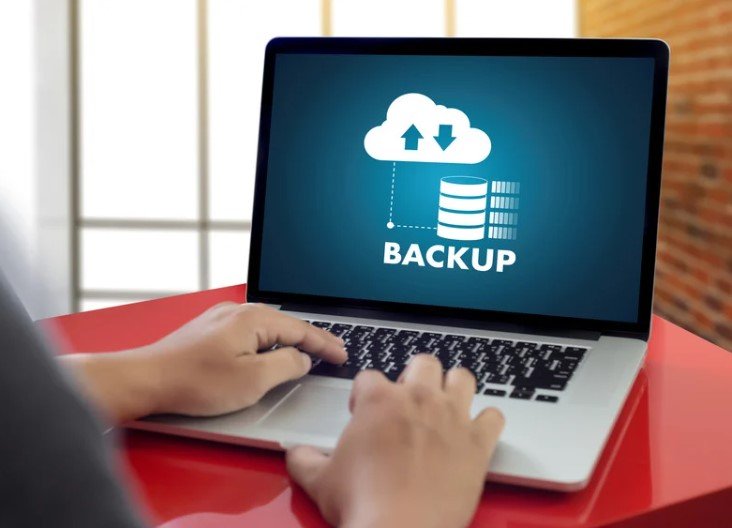
Why backups are non-negotiable
Protection against errors: If you accidentally delete a folder or misconfigure your CMS, backups let you roll back instantly.
Security assurance: If your site is hacked during the transition, a clean backup helps restore it safely.
Peace of mind: Migration becomes less stressful when you know you can restore everything at any moment.
What you need to back up
Website files
HTML, CSS, and JavaScript files.
CMS directories like WordPress’s
wp-contentfolder.Media uploads, themes, and plugins.
Use an FTP client (FileZilla, Cyberduck) or your hosting cPanel’s File Manager to download all files. Compress them into a ZIP archive for easy upload to the new server.
Databases
Export your MySQL or MariaDB database using phpMyAdmin or command line tools.
For WordPress, this means saving your posts, users, comments, and settings.
Always check the SQL file for completeness—sometimes large exports can be truncated.
Email accounts
If your hosting provider manages your emails, make sure you copy them. Options include:Downloading via IMAP to a mail client like Outlook/Thunderbird.
Using migration tools provided by your host.
Neglecting email migration often leads to lost messages and disrupted communication.
SSL certificates
Websites running on HTTPS need SSL certificates reinstalled on the new server. Depending on your provider, you may:Export and reinstall the same certificate.
Or request a re-issue.
Without SSL, your website will show browser security warnings after migration.
DNS and configuration files
Don’t forget.htaccess, cron jobs, robots.txt, and sitemap.xml. These small files play a big role in SEO and website functionality.
How to store backups safely
Keep at least two copies: one on your computer and one in cloud storage (Google Drive, Dropbox, or dedicated backup services).
Encrypt sensitive data (like user details and payment info).
Test your backups by restoring them in a local or staging environment before the actual migration.
Pro tip
Many hosts now offer one-click backups or automated daily snapshots. Even if your current host provides this, create a manual backup yourself. Having independent control ensures you’re not locked into their system.
In short: a proper backup is your insurance policy. You may never need it, but if migration fails, it will save your business, your SEO rankings, and your sanity.
Choose your new host wisely
Migrating a website isn’t just about moving files from Point A to Point B—it’s about choosing a hosting provider that will support your site’s long-term success. The host you pick determines how fast your website loads, how secure it is, and how well it handles traffic spikes. Switching hosts is a chance to upgrade—not just relocate.
What to look for in a new hosting provider
Reliability and uptime
Downtime is the very problem you’re trying to avoid. Look for providers that guarantee 99.9% uptime or better. Check independent reviews, monitoring reports, and customer feedback before committing.Speed and performance
In 2025, speed is non-negotiable. Your host should offer:SSD or NVMe storage for ultra-fast data access.
Built-in CDN (Content Delivery Network) support.
Optimized server configurations for WordPress, WooCommerce, or other CMSs.
Faster servers mean better user experience and higher Google rankings.
Scalability
Can your hosting grow with your business? If you expect traffic surges, make sure your host offers easy upgrades—moving from shared hosting to VPS or cloud hosting should be seamless.Customer support
When something goes wrong during migration, you need instant help. Choose a provider with 24/7 live chat or phone support. Test their support responsiveness before signing up—slow responses now mean slower fixes later.Migration assistance
Many hosting providers now offer free professional migration. Their technicians move your files, databases, and email accounts for you, drastically reducing the risk of errors. If you’re not confident in doing it yourself, this is a huge advantage.Security features
Look for features such as:Free SSL certificates.
Automated backups.
Malware scanning and DDoS protection.
Firewalls and two-factor authentication for account security.
Value for money
Don’t just chase the cheapest deal. Compare features like bandwidth, storage, free domain offers, and renewal prices. Many hosts advertise low intro rates but have high renewal fees—always read the fine print.
Hosting types to consider in 2025
Shared Hosting: Budget-friendly, but best only for small, low-traffic sites.
VPS Hosting: Offers dedicated resources and flexibility at mid-range cost.
Managed WordPress Hosting: Optimized performance and updates for WordPress sites.
Cloud Hosting: Highly scalable and reliable, perfect for growing businesses.
Dedicated Hosting: Premium choice for enterprise websites needing maximum control.
Pro tip
Check whether your new host has data centers close to your target audience. If most of your visitors are in the U.S., hosting your site in a European server may slow down performance. Local or region-based hosting reduces latency and improves load times.\
The steps for a smooth migration
Now that you’ve prepared your site, created backups, and selected a new host, it’s time for the most critical stage in how to switch hosting without downtime: the actual migration. Done right, these steps will move your entire website without downtime.
Step 1: Transfer your files
Your website files are the foundation of your site—HTML, CSS, PHP scripts, images, themes, and plugins. Here’s how to move them safely:
Use FTP/SFTP: Connect to your old host and download all files to your local computer using an FTP client like FileZilla. Then upload them to your new host.
Use cPanel File Manager: If both hosts offer cPanel, you can compress your files into a
.zip, download them, and re-upload them to the new server for faster transfer.Check hidden files: Don’t forget
.htaccessand other configuration files—they’re easy to overlook but essential for redirects and permissions.
Pro tip: Maintain the same folder structure (e.g., public_html or www) to avoid broken links or missing files.
Step 2: Migrate your databases
For dynamic websites (WordPress, Joomla, Magento, etc.), databases are the heart of your site. Without them, your site won’t function.
Export database: In your old hosting panel, open phpMyAdmin and export your database as an
.sqlfile.Create a new database: On your new host, create a new database, username, and password.
Import database: Use phpMyAdmin on the new host to import the
.sqlfile.Update config file: Edit your CMS configuration file (e.g.,
wp-config.phpin WordPress) with the new database details.
Pro tip: Watch for database prefix changes (wp_ vs custom_)—mismatches can cause errors.
Step 3: Additional configurations
After files and databases are in place, there are smaller but equally important adjustments:
SSL certificate: Reinstall or re-issue your SSL certificate to maintain HTTPS. Many hosts now provide free Let’s Encrypt SSLs.
File permissions: Ensure correct read/write permissions for files and folders to avoid security holes.
Email accounts: Recreate email accounts associated with your domain in the new hosting panel.
Cron jobs & redirects: Re-add scheduled tasks and verify
.htaccessrules work as expected.
Step 4: Update DNS settings
DNS (Domain Name System) is what connects your domain name to your hosting server. Handling this properly ensures zero downtime.
Lower TTL before migration: As mentioned earlier, set TTL to around 300 seconds (5 minutes) 24–48 hours before migration.
Update nameservers: Log into your domain registrar (e.g., GoDaddy, Namecheap) and update nameservers to those provided by your new host.
Allow propagation: DNS propagation can take a few hours to 48 hours worldwide, but with low TTL, changes are reflected faster.
Test during propagation: Access your site using your computer’s
hostsfile or the temporary URL provided by your new host to confirm it’s working correctly.
Pro tip: Don’t cancel your old hosting plan until propagation is fully complete and you’ve confirmed your new site works on all devices.
Step 5: Test everything
Once DNS is pointing to your new server, it’s time to test thoroughly:
Check homepage and internal pages.
Verify forms, checkout processes, and interactive features.
Test SSL/HTTPS redirect.
Ensure images, CSS, and JavaScript load correctly.
Run a speed test to confirm performance.
By following these steps carefully, you ensure your site not only migrates smoothly but also continues running without interruption—your visitors won’t even notice you’ve switched hosts.
Common mistakes to avoid
Even with a clear migration plan for how to switch hosting without downtime, many website owners stumble over avoidable mistakes. These errors often lead to unnecessary downtime, broken websites, or lost SEO rankings. Knowing what to watch out for can save you hours of troubleshooting and weeks of lost traffic.
1. Skipping backups
The single biggest mistake is assuming nothing will go wrong. Without a backup, one small error—like an incomplete file transfer—can wipe out your entire website. Always keep at least two backup copies: one local and one on cloud storage.
2. Ignoring version compatibility
Your site may work perfectly on the old host but fail on the new one if there’s a mismatch in software versions. For example:
WordPress plugins that require PHP 8.2 may break on a server running PHP 7.4.
Databases built on MariaDB 10.6 may behave differently on MySQL 5.7.
Always check compatibility in advance.
3. Not testing before DNS switch
Many people update DNS immediately after uploading files, without testing. The result? Visitors see a broken website while you scramble to fix it. Always test your site on the new host using:
The temporary URL provided by your host, or
Your computer’s
hostsfile to map your domain to the new server’s IP.
4. Cancelling old hosting too early
Eager to save money, some users cancel their old hosting as soon as they switch DNS. But DNS propagation can take up to 48 hours globally. During this time, some visitors may still be directed to the old server. Cancel only after full propagation is confirmed.
5. Overlooking SEO elements
If your migration causes broken links or missing files, search engines may penalize you. Common SEO issues include:
Forgetting to move robots.txt or sitemap.xml.
Not preserving URL structures (leading to 404 errors).
Neglecting 301 redirects for changed URLs.
6. Failing to migrate email accounts
If your email is tied to your hosting provider, forgetting to migrate email accounts can disrupt business communication. Clients sending messages during propagation may experience delivery failures.
7. Not monitoring after migration
Migration isn’t over once DNS updates. You need to monitor your site for at least a week. Use tools like:
Google Search Console to check crawl errors.
Uptime monitoring tools (e.g., UptimeRobot, Pingdom).
Analytics reports to ensure traffic flows normally.
When to let your hosting handle it?
Not every website owner needs to go through the technical hassle of migration. While it’s empowering to manage everything yourself, sometimes the smartest decision is to let your hosting provider handle the migration for you.
When should you hand it over?
Mission-critical websites
If your site generates significant revenue (e.g., ecommerce stores, SaaS apps, or client portals), the cost of downtime is far too high to risk. A professional migration team will ensure your site transitions without glitches.Lack of technical expertise
Not everyone is comfortable dealing with FTP, databases, and DNS settings. One misstep can break your site or cause extended downtime. In these cases, using your host’s migration service provides peace of mind.Complex setups
Websites with multiple databases, advanced caching systems, or custom-coded scripts are harder to move. Professional teams can replicate server environments and configurations accurately.Large websites with heavy data
Moving a site with gigabytes of media files, customer records, or blog posts is tricky. Hosting companies often have special tools that transfer large data sets much faster and more securely than manual methods.Email migration challenges
If you have dozens of company email accounts tied to your old host, migrating them manually can be overwhelming. Hosting support teams can migrate emails seamlessly, avoiding missed communication.
Benefits of letting your host migrate
Expertise: Hosting providers do migrations daily. Their teams know how to spot and prevent issues before they occur.
Time-saving: Instead of spending hours learning the process, you can focus on your business.
Minimal risk: With professional help, the chance of data loss or misconfiguration drops significantly.
Often free: Many top hosts in 2025 (like SiteGround, A2 Hosting, and WPX) now include free migration services with new plans.
A little planning saves a lot of fixing
When it comes to website migration, the old saying holds true: an ounce of prevention is worth a pound of cure. Most migration disasters don’t happen because the process is impossible—they happen because of poor planning.
Why planning is critical
Downtime prevention: Careful preparation ensures visitors never see an error page.
SEO preservation: Migrating without losing rankings requires maintaining URL structures, redirects, and sitemaps.
Stress reduction: A clear roadmap removes the guesswork, so you don’t scramble mid-migration.
The payoff of proper planning
With a little foresight—like scheduling migration during off-peak hours, testing on the new host before going live, and lowering DNS TTL—you save yourself from endless troubleshooting later. Instead of fixing broken links or panicking over lost emails, you’ll have a seamless, invisible transition.
Final thoughts
Knowing how to switch hosting without downtime in 2025 means this process is no longer a high-risk move. Done correctly, it’s an opportunity to improve speed, reliability, and scalability. Whether you migrate manually or let your hosting provider handle it, the key to success is preparation, backup, and testing.
Conclusion
Mastering how to switch hosting without downtime isn’t just possible—it’s achievable with the right approach. By auditing your site, creating full backups, choosing a reliable host, and carefully managing DNS, you can migrate smoothly without losing visitors or rankings.
Don’t think of hosting migration as a burden. Think of it as a fresh start—a chance to strengthen your website’s foundation, improve performance, and scale with confidence.
???? Ready to switch hosts? Start planning your migration today. With the right preparation and a step-by-step strategy, you’ll move your site seamlessly—and your visitors won’t even notice the change.
FAQs
Q1. How do I switch hosting without downtime?
By preparing in advance, creating backups, uploading files and databases to the new host, testing on a temporary URL, and only updating DNS once everything is verified, you can switch hosts without downtime.
Q2. How long does it take to migrate a website to a new host?
The migration process itself can take just a few hours. However, DNS propagation may take 24–48 hours globally. With TTL lowered before migration, changes usually update much faster.
Q3. Will switching hosts affect my SEO rankings?
Not if done correctly. Maintain the same URL structure, move sitemaps and robots.txt, and set proper redirects. Done carefully, your rankings will remain intact.
Q4. Can I migrate my website myself, or do I need expert help?
You can migrate a website yourself if you’re comfortable with FTP, databases, and DNS. But for complex or business-critical sites, it’s often best to let your host handle it professionally.
Q5. What is the biggest risk during hosting migration?
The two biggest risks are data loss and downtime. Both can be avoided by creating full backups, testing the site before DNS updates, and keeping the old hosting active until migration is fully complete.
Q6. Do I need to migrate email accounts too?
Yes, if your email accounts are hosted with your old provider. Failing to migrate them can cause lost emails. Many hosts provide free tools or support for email migration.
Q7. Can I move from shared hosting to cloud or VPS hosting without downtime?
Yes. The process is the same—backup, transfer, test, and switch DNS. In fact, upgrading to VPS or cloud often improves performance and scalability.
Q8. Should I migrate my site during the day or night?
Choose off-peak hours when your site has the lowest traffic. This minimizes disruption if any issues occur during testing.